Starting soon screen templates
The screen people stare at before you speak, and the two that cover the gaps.
In short
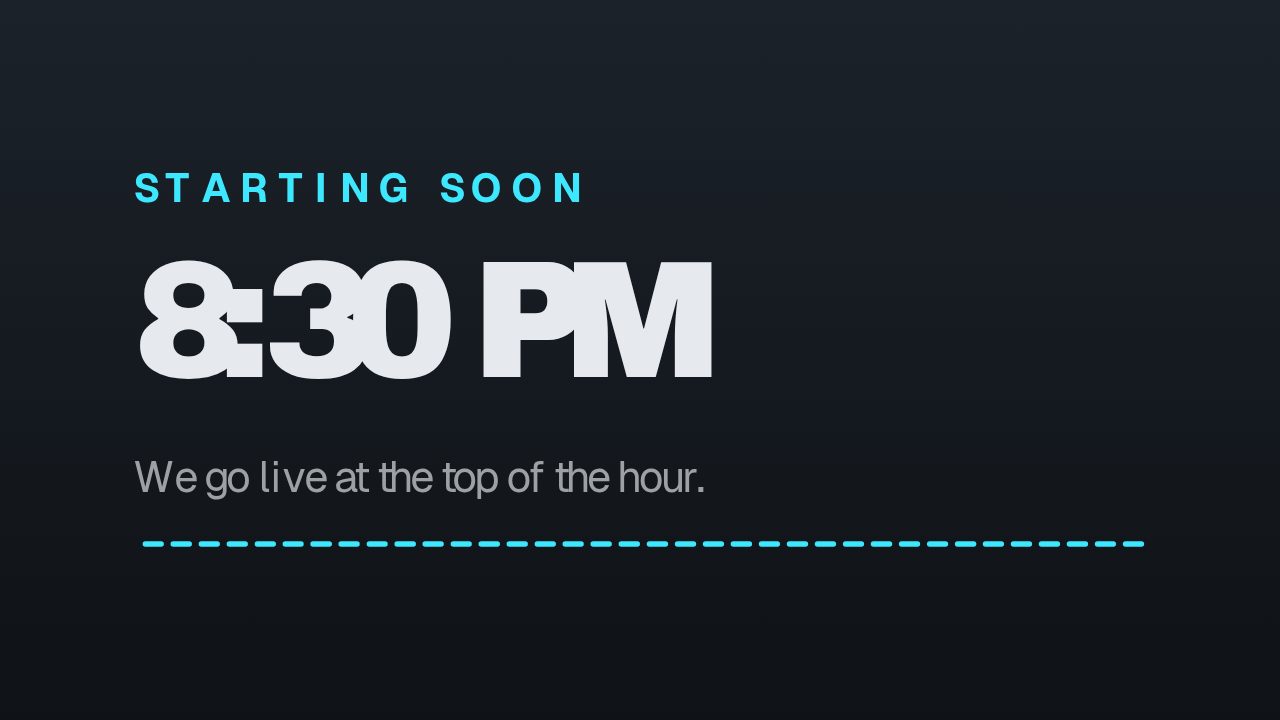
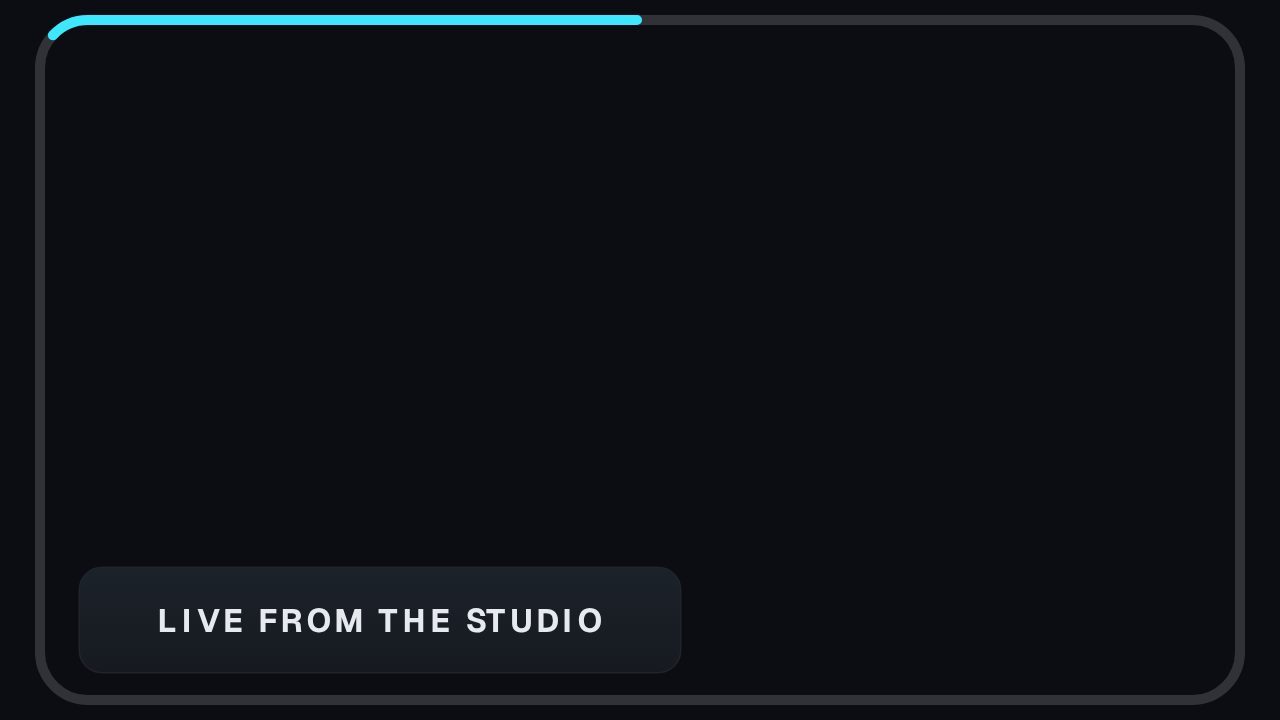
The first five minutes of a stream are the most-watched thing on the channel and usually the least designed, which makes a starting soon screen the quickest win a channel has. These are animated versions you brand yourself: a looping title screen, a camera frame, an emote wash and a live badge, edited in the browser and exported as a video file you load into OBS as a scene source. They loop, so a five minute wait plays as motion rather than a still image with a countdown burned into it.
- 6
- Animations here
- 989
- In the library
- MP4, GIF, MOV
- Export
- 16:9 · 4:5 · 1:1 · 9:16
- Ratios
- 720p to 4K
- Resolution
- In the browser
- Editing
What you get
The most-watched five minutes on the channel
People arrive early and sit on the waiting screen. A designed one sets the tone before you have said anything.
Loops cleanly, so it can run for ten minutes
Built to repeat without a visible cut, rather than a five second clip that snaps back to the first frame.
Camera frames and badges for once you are live
The same visual language carried into the live scene, so the stream does not change identity the moment it starts.
Works with whatever you already stream with
A video file for anything that plays one, or a browser source URL for anything that takes one. OBS and Streamlabs both do either.
The animations
Branded starting soon, be right back and setup screens.


How to make a starting soon screen for a stream
- 01
Pick a screen that loops
The waiting screen is the one people watch longest. Motion that repeats cleanly beats a still frame and beats a busy loop that gets annoying by minute three.
- 02
Put your channel on it
Channel name, handle, your colours and logo. This is the screen new viewers judge the stream by before they hear you.
- 03
Put it into OBS
Either export the file and add it as a looping media source, or place the screen on a live overlay set to always on and give OBS the overlay URL instead.
What comes out of it
Format
MP4 for a full-frame screen, MOV with alpha for frames and badges over your camera.
Ratio
16:9 at 1080p or 4K, which is what a stream scene wants.
Frame rate
60 fps so it does not judder against a 60 fps stream.
Looping
The screens are built to repeat, so one file covers a five minute wait.
Questions
Can it show a countdown to when I go live?
The timer text is typed in before you export, so it shows a fixed time rather than counting down live. For a real countdown, use your streaming software's own timer widget over the top of this as a background.
How do I make it loop in OBS?
Two ways. Add the exported file as a Media Source and tick Loop, or place the screen on a live overlay in always-on mode and add the overlay URL as a browser source, which loops for as long as the source is open and can be edited without touching OBS.
Will a looping video screen hurt my stream's performance?
Barely. It is a pre-rendered file rather than a browser source running an animation engine, which is the lighter of the two options for the same result.
Can I use the same design for be right back?
Yes. Export the same screen with different text. Keeping the two identical apart from the wording is what makes a channel look like it was designed rather than assembled.
Nearby
Twitch alert overlay templates
Follow, sub, gift and bit alerts, branded to your channel.
6 animationsLower third templates for podcasters
Guest plates, quote bars and idents for episodes and clips.
6 animationsMake your stream look made, not defaulted.
Give a first-time viewer a channel worth staying in. Alerts, starting-soon screens, camera frames, goal meters and follow prompts, exported as transparent files your streaming software can read.
The whole library for Twitch streamers
Design the wait
The screen people stare at longest deserves five minutes of your time. It exports at 60 fps with no watermark.
Start your trial