
Make your stream look made, not defaulted.
Give a first-time viewer a channel worth staying in. Alerts, starting-soon screens, camera frames, goal meters and follow prompts, exported as transparent files your streaming software can read.

In short
Turn a plain capture into a channel people stay in, between one stream and the next. Live streamers use CaliberVisual for tip alerts, raid welcomes, starting-soon screens and follower goals. You choose an animation, replace its text with your own, apply your channel's colours and fonts, and export it as a MOV with a real alpha channel. That file goes into OBS or Streamlabs as a media source and sits over gameplay with nothing behind it. It exports files rather than hosting an alert service, so nothing listens to your channel events for you, and equally nothing goes down mid-stream.
- 158
- Animations here
- 525
- In the library
- MP4, GIF, MOV
- Export
- 24 · 30 · 60 fps
- Frame rate
- 720p to 4K
- Resolution
- In the browser
- Editing
What Twitch streamers put on screen
The alerts chat reacts to
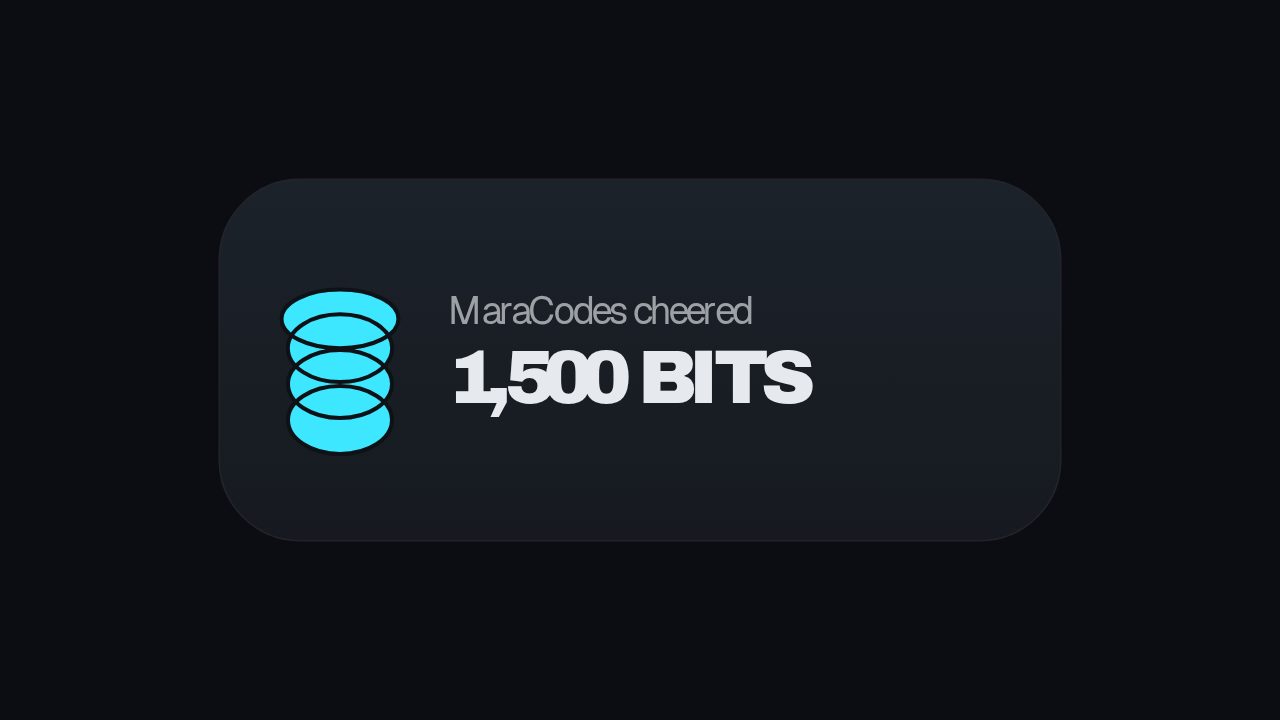
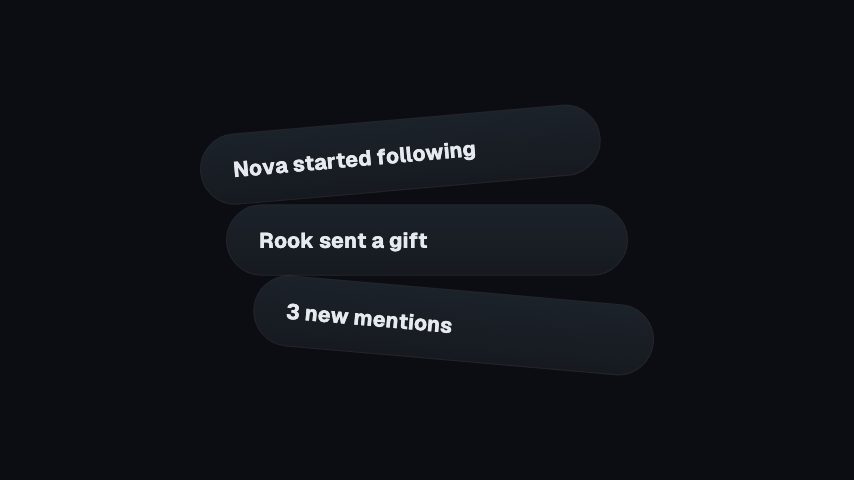
A tip, a raid, a cheer. The moment somebody spends something on your channel is the moment an overlay earns its place. Each of these gives the name and the number equal billing, so viewers catch both without you having to read it out.
Screens between the action
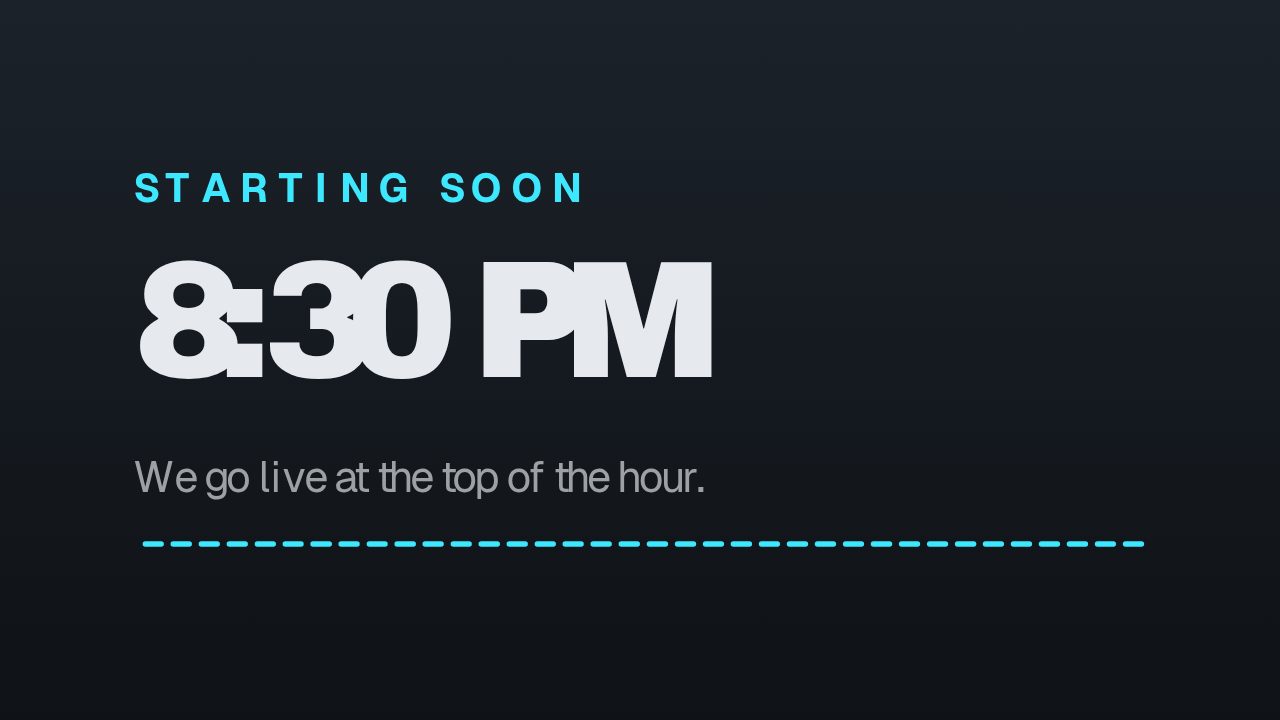
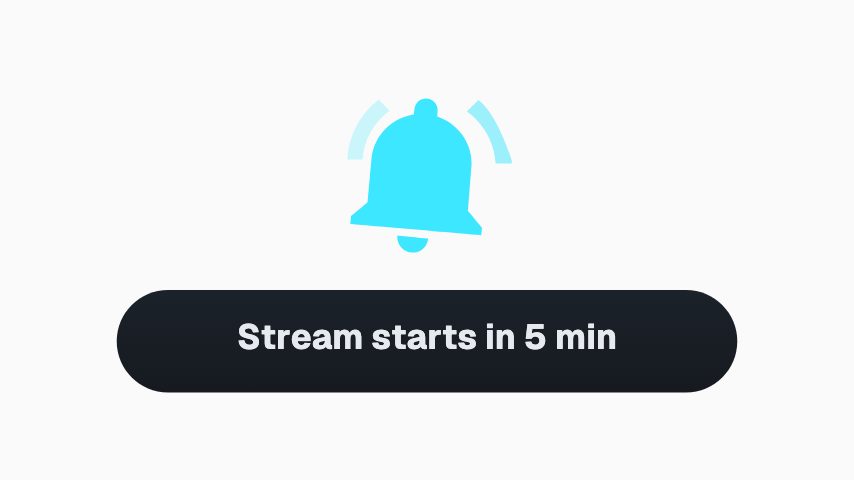
The minutes before you go live and the seconds between scenes are what a first-time viewer judges fastest. A countdown that looks made rather than defaulted is the cheapest quality signal on the whole channel.
The furniture that stays up
Pieces that live on the canvas all session: a frame round the camera, a live badge with the viewer count, chat where people can actually read it, and a goal that moves when someone subscribes.
Follow and sub prompts that don't stall the stream
The same ask in five shapes, from a full card to a bare mark, a side slide, a lower third and a corner badge. There is always one that fits a slot your layout has not already spent.
Community moments worth marking
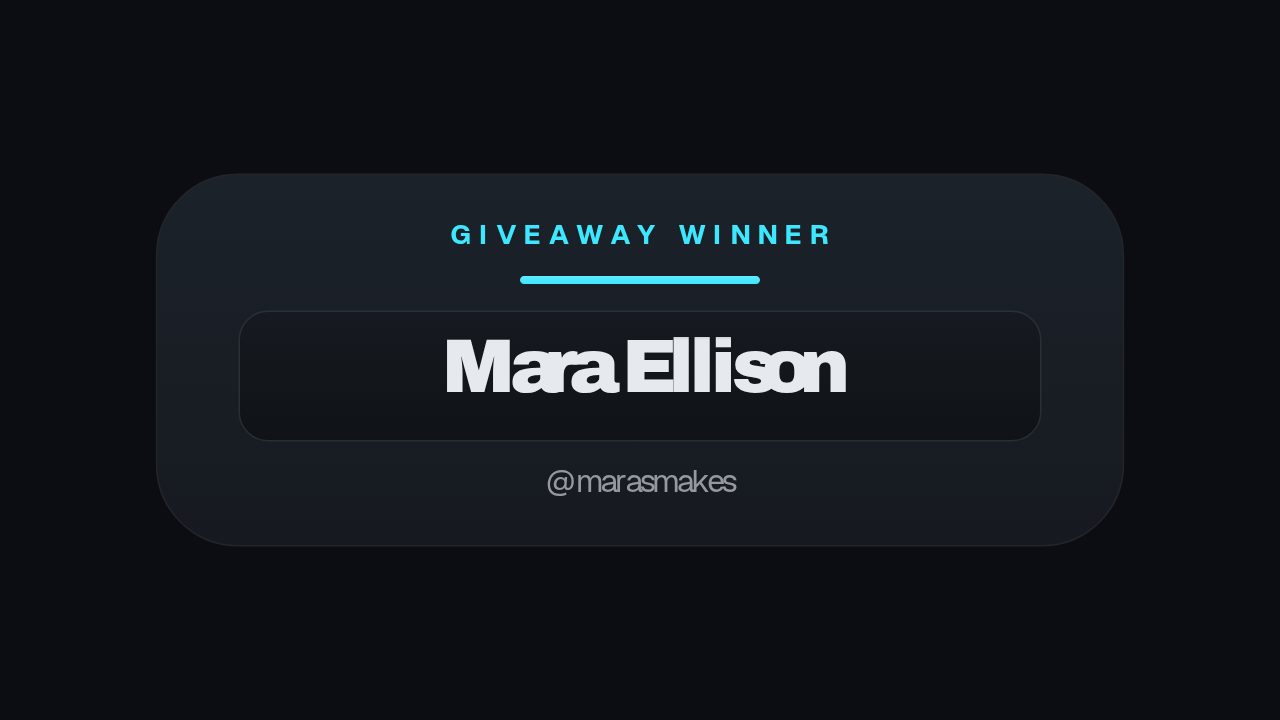
Giveaways, polls, questions and the people paying for the channel to exist. These are the overlays that make a stream feel like a room rather than a broadcast.
How to make a Twitch overlay for OBS
- 01
Choose the alert or scene screen
Open the animation you want, whether that is a tip alert, a starting-soon countdown, a camera frame or a goal meter.
- 02
Make it your channel
Type in your handle, goal or tagline and apply your brand kit so the colours and typeface match everything else on your canvas.
- 03
Export MOV and add it in OBS
Export at 1080p, then add the file to a scene as a Media Source. Tick Loop for anything meant to stay up, and leave it unticked for an alert you fire once.
How these land in your workflow
1920 x 1080 browser layer
The canvas most scenes are built on. Export at 1080p and the animation lands at the size OBS is already working in, with no scaling to fix.
MOV with alpha
A real alpha channel rather than a keyed colour. An alert composites over gameplay without a rectangle around it, at any brightness the game happens to be.
Loop it or fire it
The furniture, like a camera frame or a live badge, loops as a media source. An alert plays once when you show the source, then gets out of the way.
Reusable in the edit
The same file cuts into a highlight reel or a YouTube upload, so the raid you welcomed live can open the video later that week.
Questions Twitch streamers ask
Can I use these as an OBS overlay?
Yes. Export the animation as a MOV, add it to a scene in OBS or Streamlabs as a Media Source, and position it. The alpha channel means anything transparent in the animation stays transparent over your gameplay. Tick Loop for pieces meant to stay up, and leave it unticked for an alert you want to fire once.
Do these fire automatically when someone tips or raids?
No, and that is the honest trade. CaliberVisual exports files rather than hosting an alert service, so nothing here listens to your Twitch events. What you get instead is an alert you can recolour, retime and re-export in a couple of minutes, a file that keeps working when a third-party service has an outage, and the same asset available in your editor when the clip becomes a video.
What resolution should I export at?
1080p, if your canvas is the usual 1920 x 1080, because the animation then lands pixel for pixel. Export at 4K only when your canvas is 4K, or when the same file is going into a video you will crop into later.
Will every overlay match my channel's colours?
Yes, if you save a brand kit. It holds your colours, typeface and logo, and applying it to an animation recolours and retypes the whole thing. A layout assembled from six different overlays then reads as one channel rather than six downloads.
Can I change the text after exporting?
Yes. Nothing is baked. Reopen the animation, change the field and export again. A goal meter with a new target or an alert with a new tagline is a two-minute job, not a re-commission.
Do these work on YouTube Live and Kick too?
Yes. The export is an ordinary video file, so anything that accepts a media source will take it. The wording on the follow prompts is Twitch's, but there are YouTube, TikTok, X and Facebook versions of the same animations in the library.
Every animation for Twitch streamers
Streaming
25 streaming animations, editable in the browser and exported straight from it.
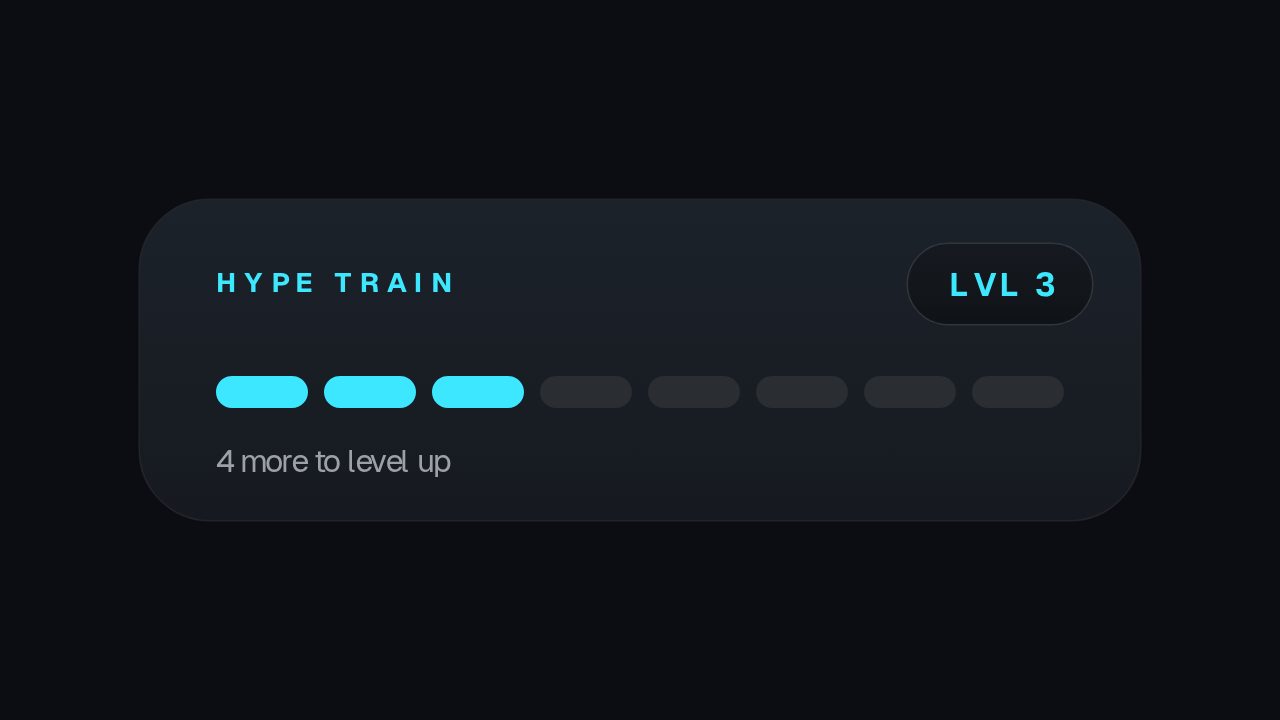
- Hype Train3s
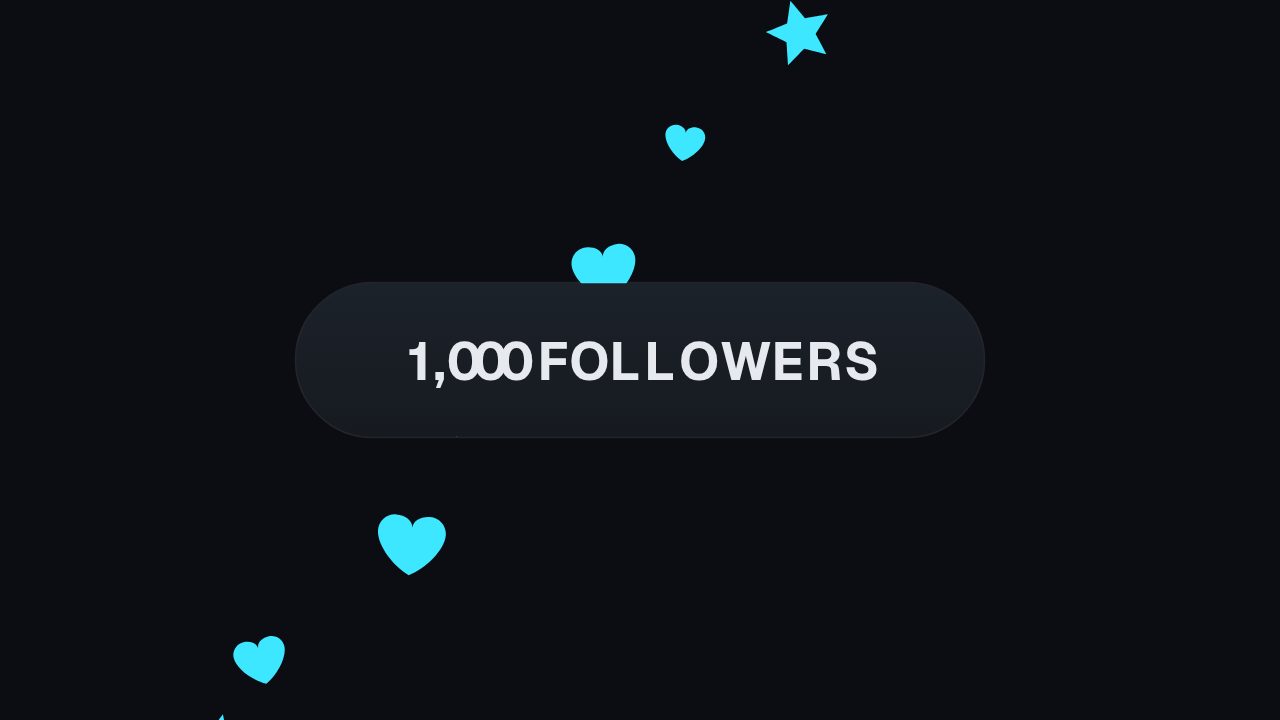 Emote Rain3s
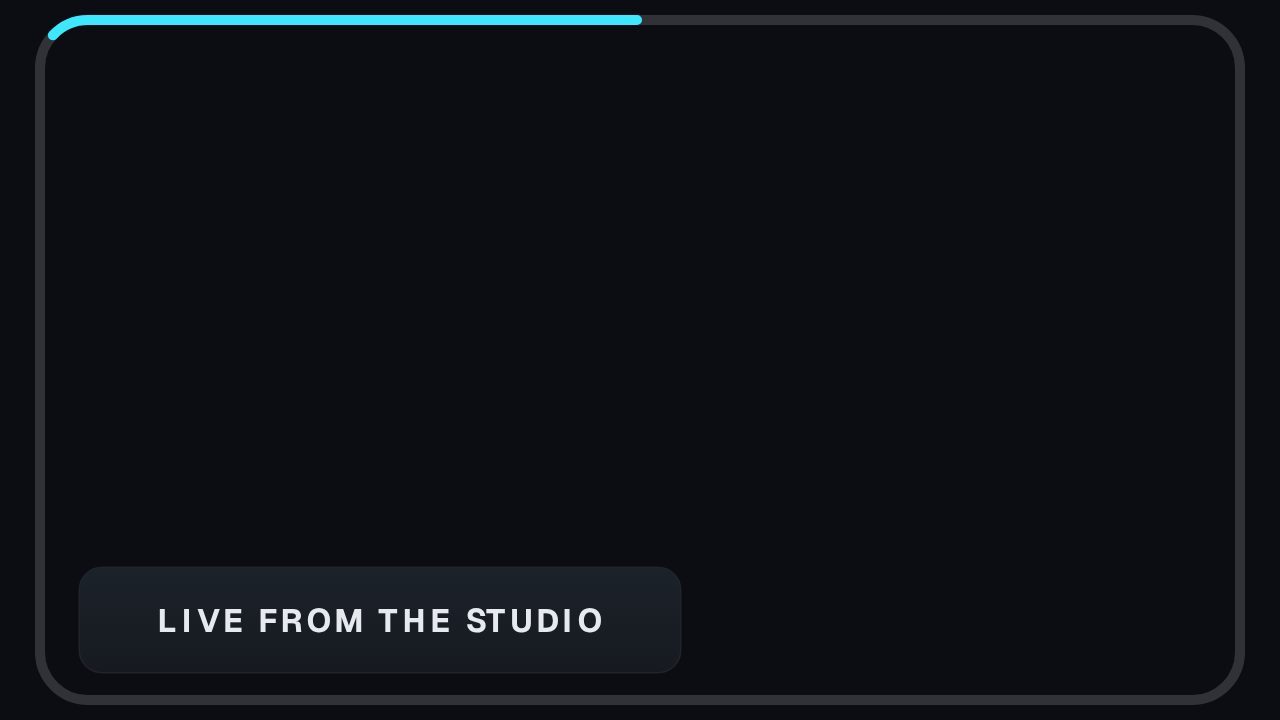 Camera Frame3s
- Starting Soon4s
 Live Viewer Badge3s
 Now Playing3s
 First in Comments3s
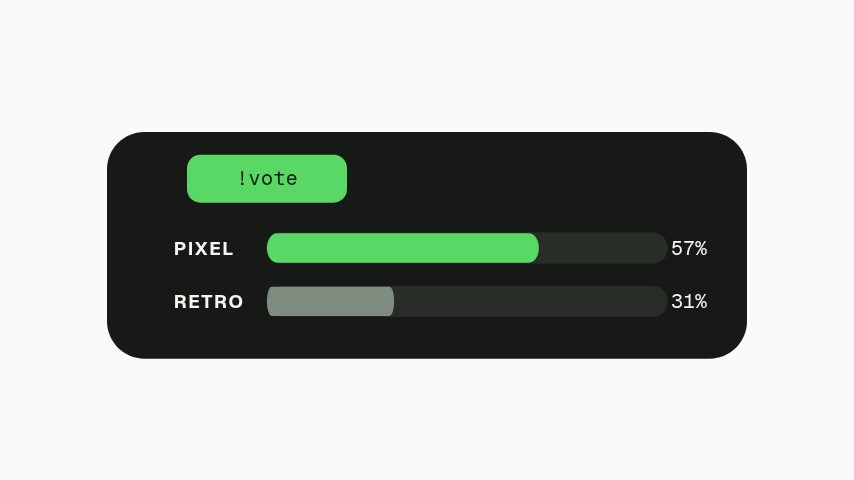 Chat Vote Tally3s
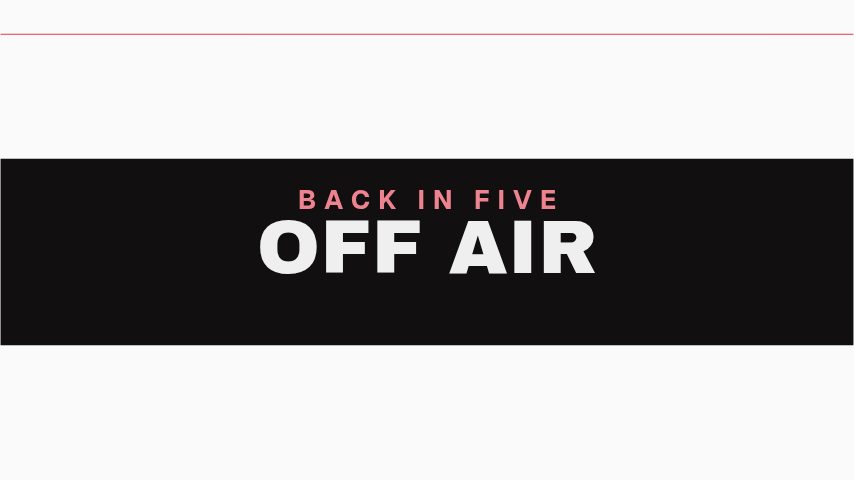 Shutter Slats4s
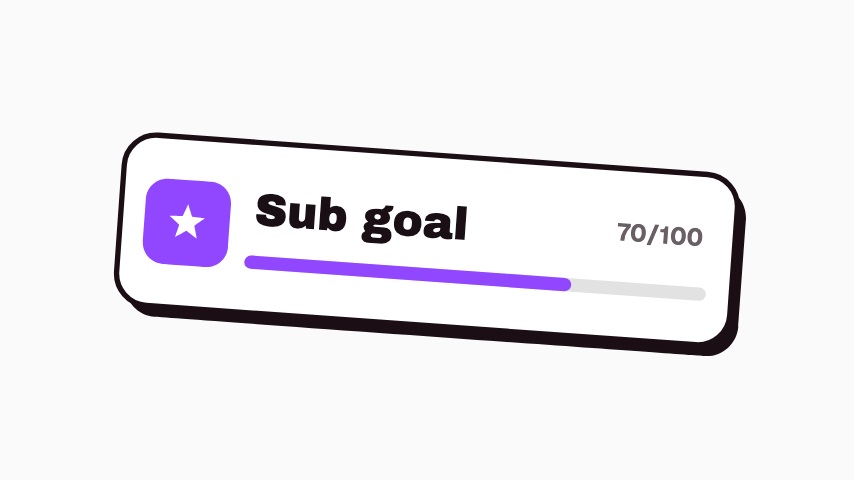 Sub Goal Sticker3s
 Live Sticker3s
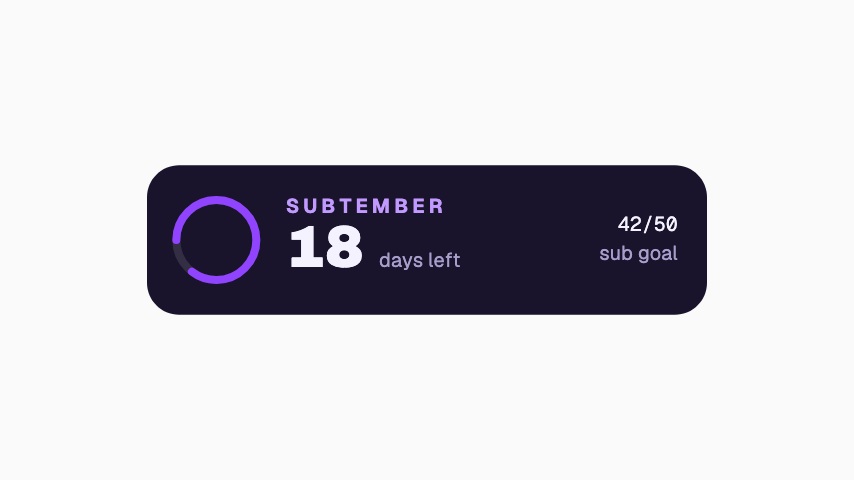 Subtember Countdown3.3s
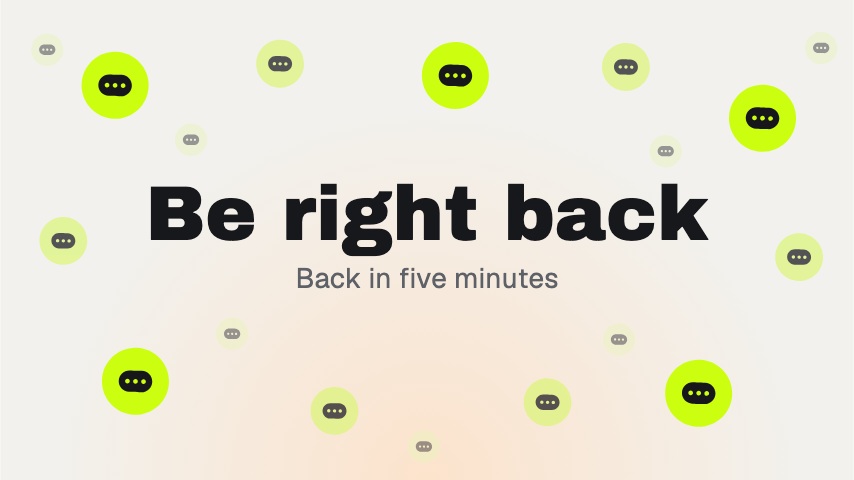 BRB Scene5s
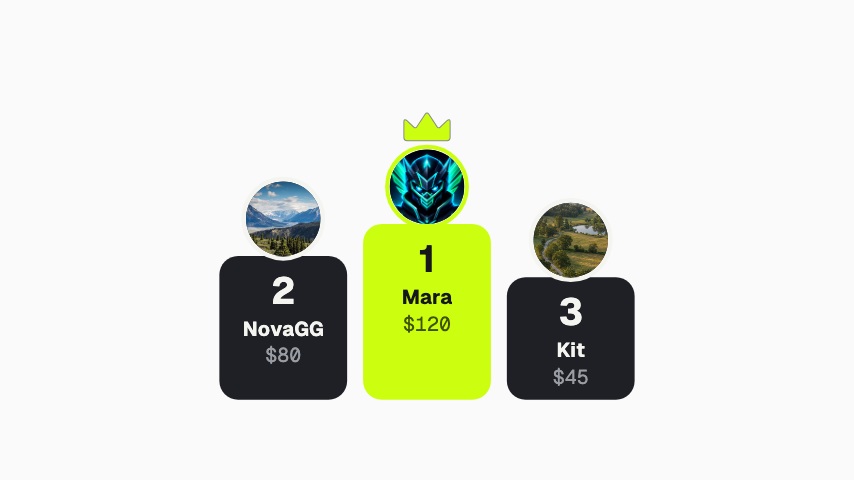 Top Supporters4s
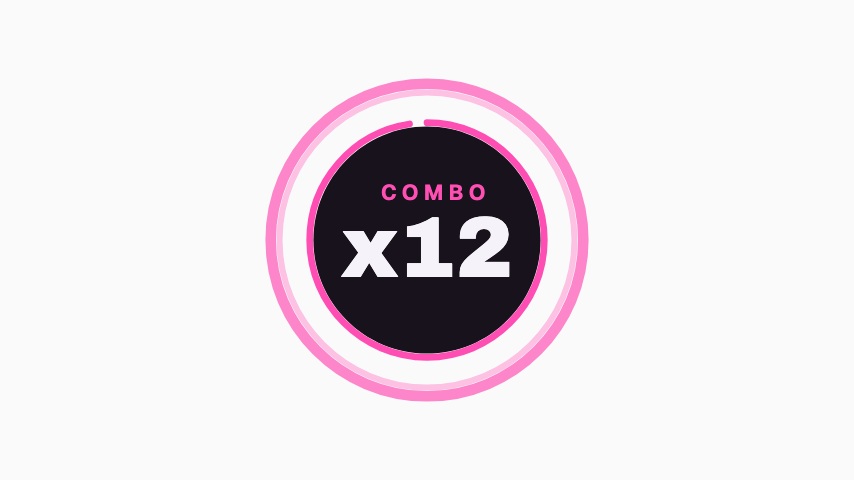 Combo Counter3.2s
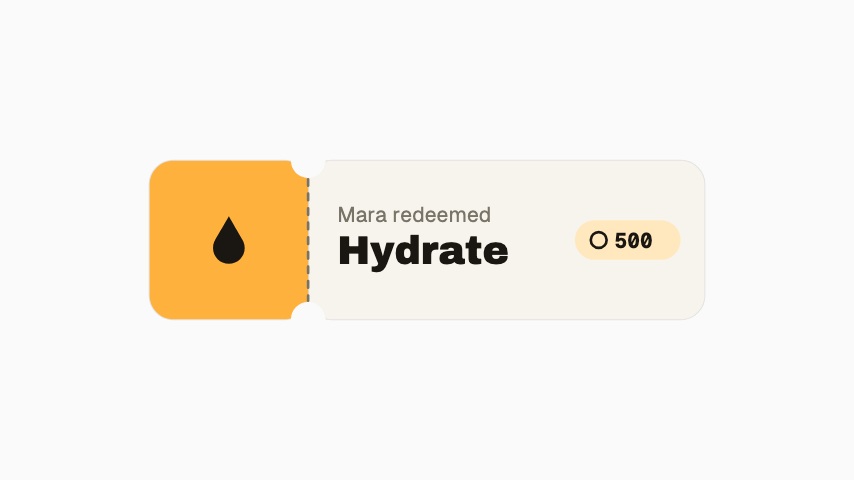 Reward Redeemed3.5s
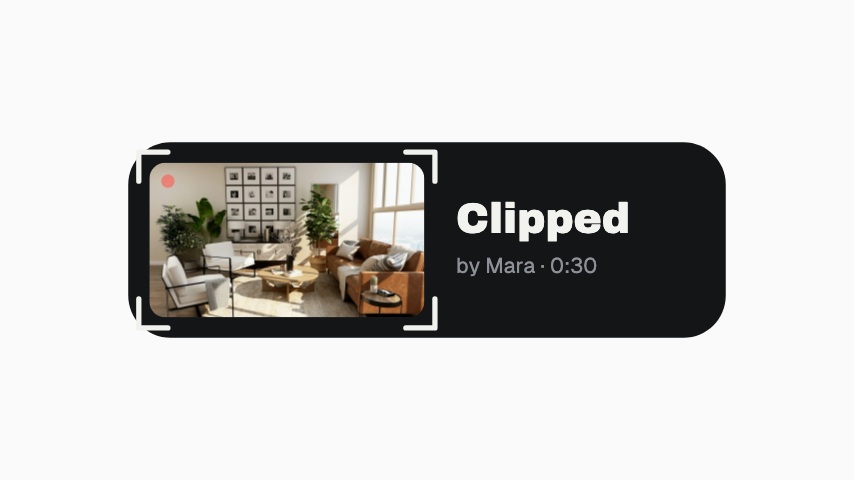 Clip Alert3.2s
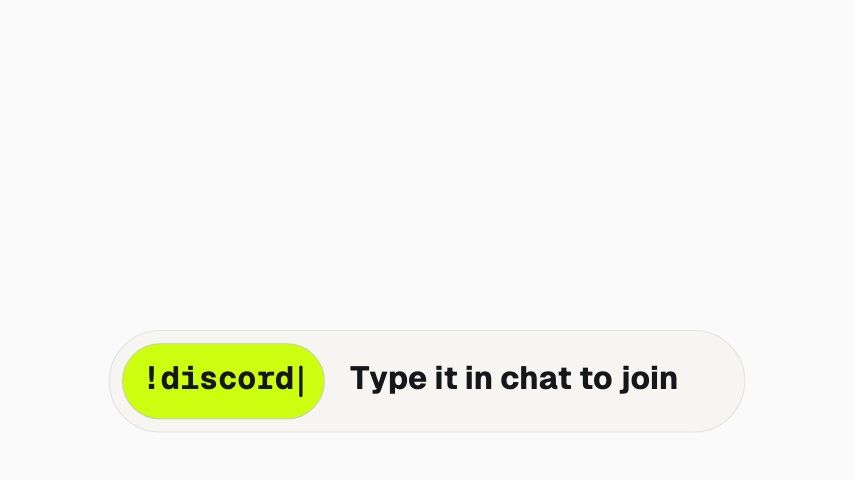 Chat Command3.2s
 Raid Orbit4s
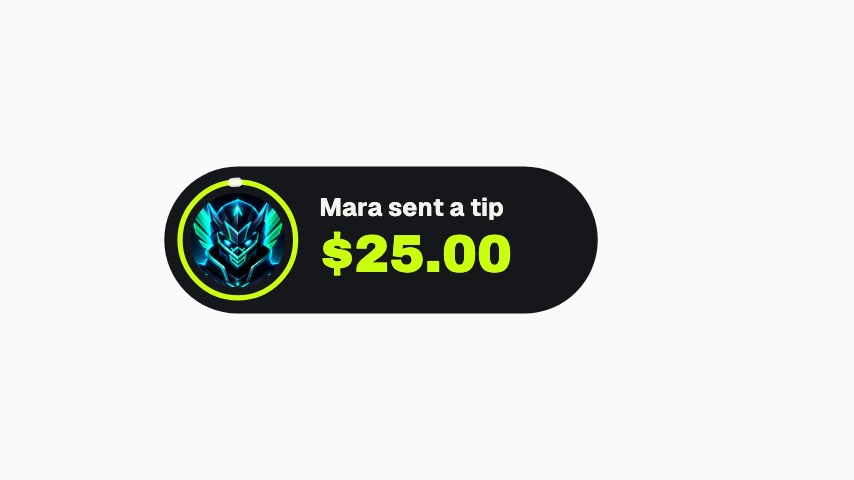 Tip Ring3.6s
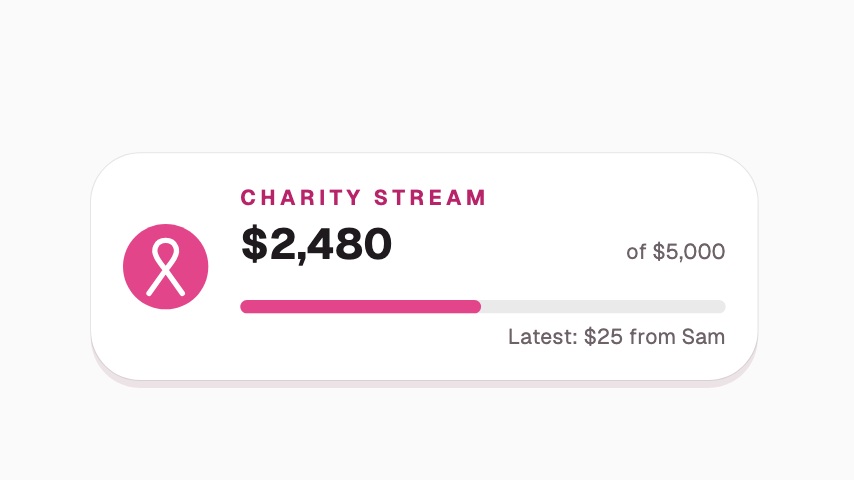 Charity Goal4s
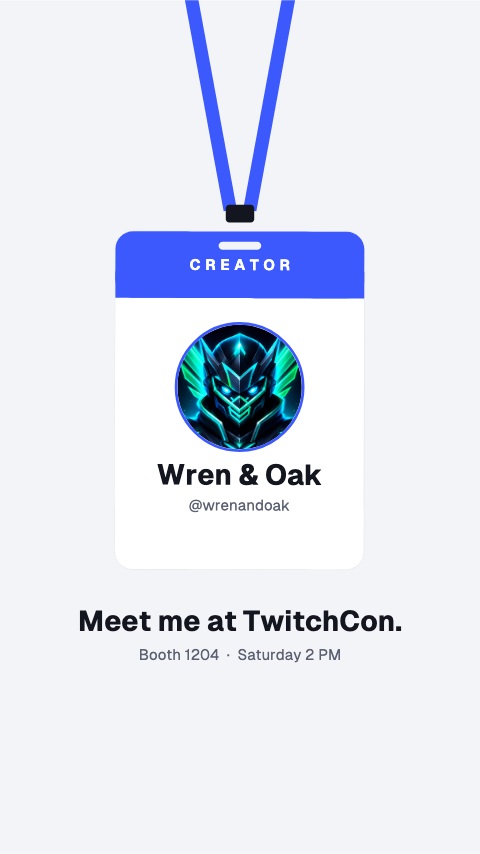 Event Badge5s
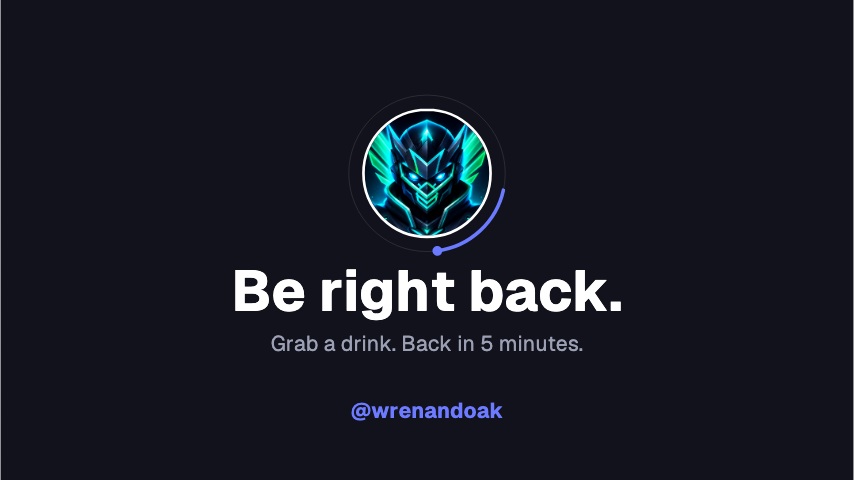 BRB Card5s
 Giveaway Wheel4s
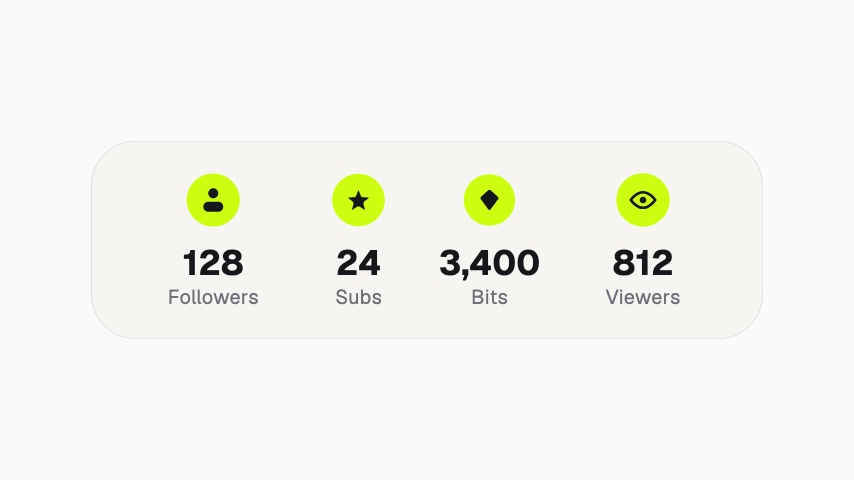 Recap Deck4s
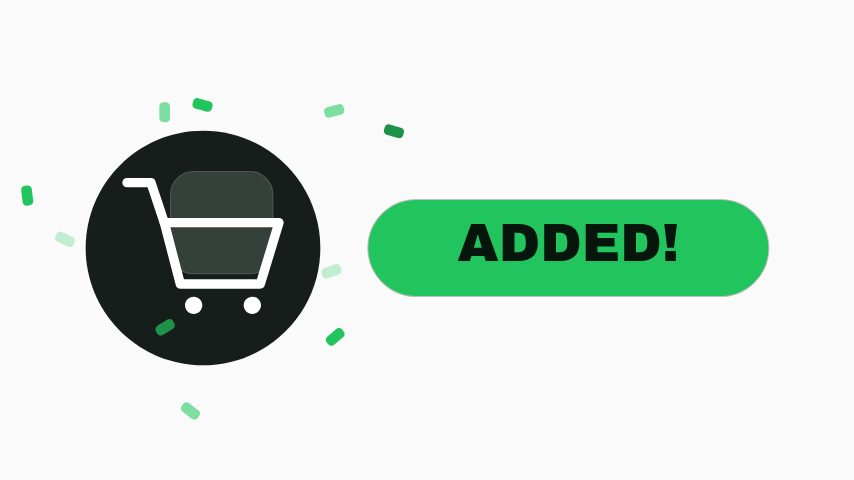
Alerts
9 alerts animations, editable in the browser and exported straight from it.
Community
23 community animations, editable in the browser and exported straight from it.
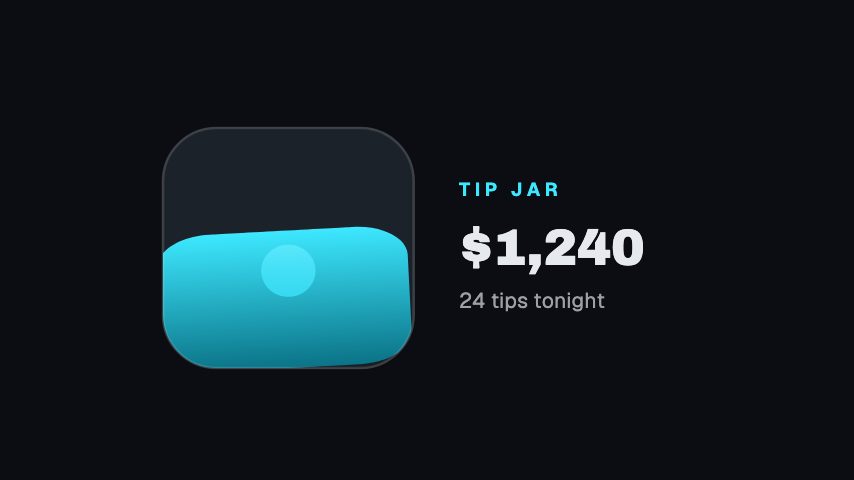 Tip Jar3s
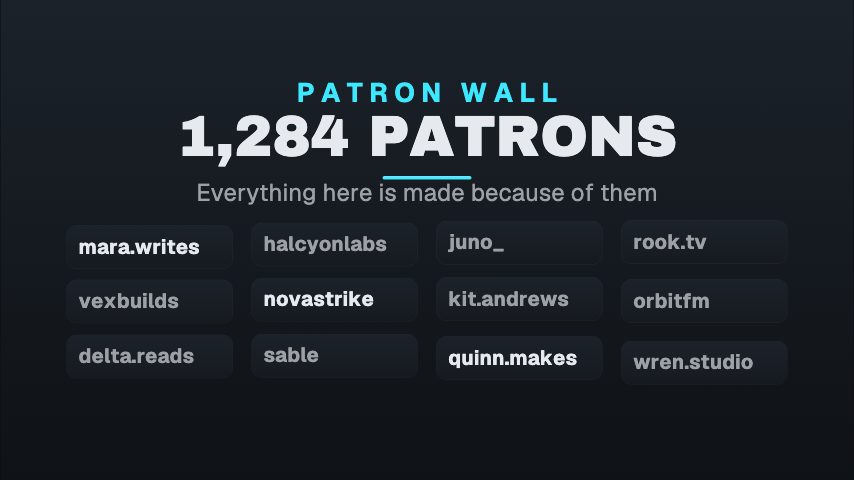 Patron Wall4s
 Twitch Sub Tier3s
 Twitch Gift Subs4s
 Patreon Join Count4s
 YouTube Join Square4s
 Twitch Join Stack4s
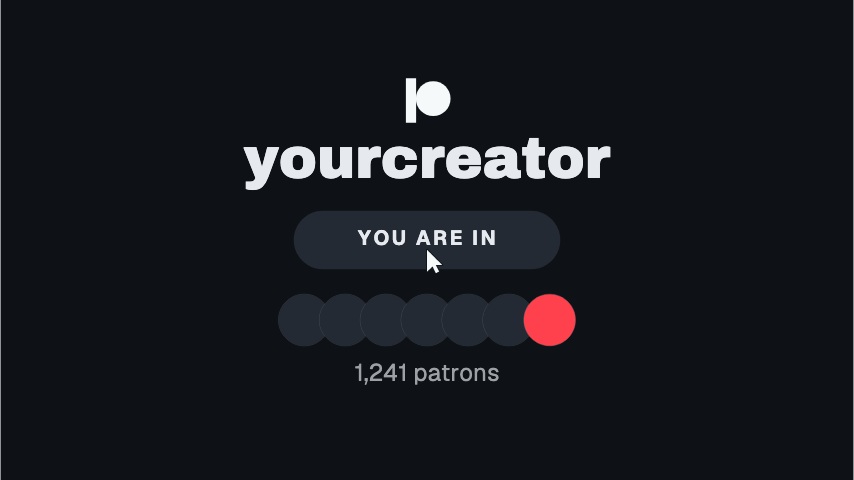 Patreon End Card4s
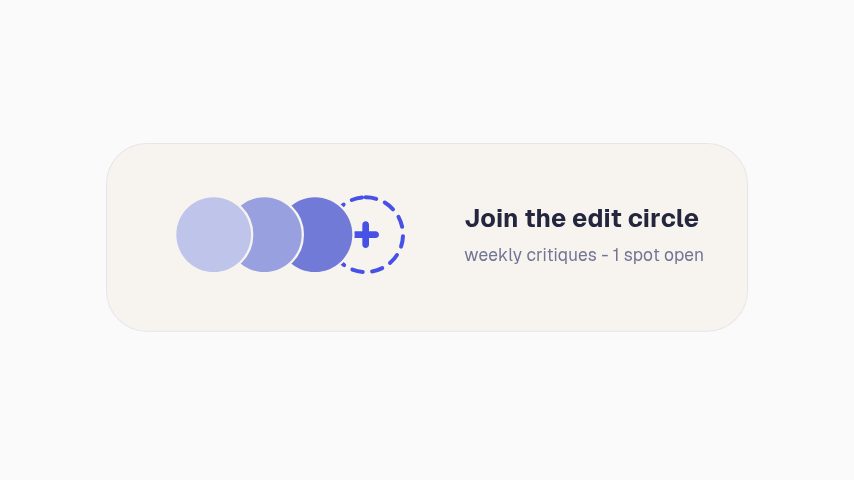 Join the Circle3s
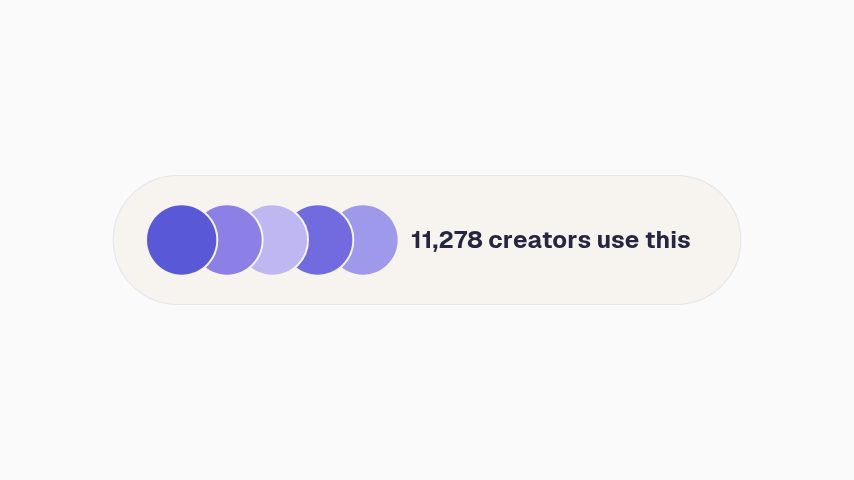 Social Proof Strip3s
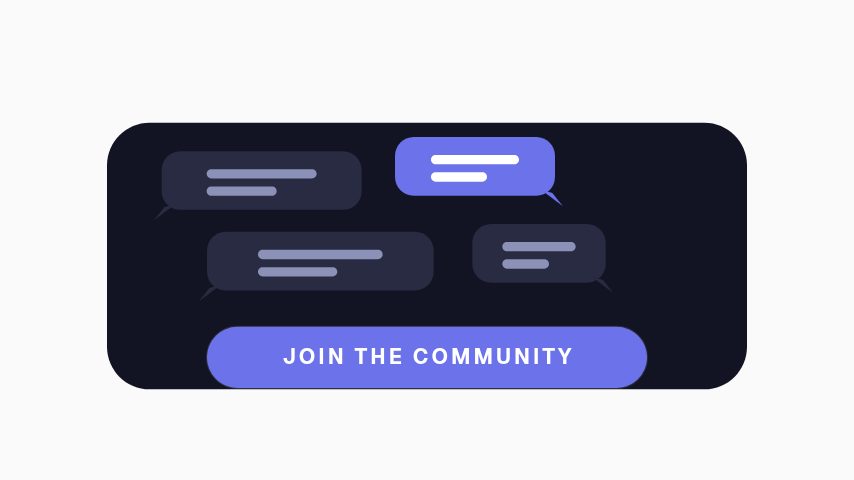 Community Join3s
 RSVP Chip Press3s
 Birthday Shoutout4s
 Review Verdict5s
 Recipe Scaler4s
 Stream Recap5s
 Trip Cost5s
 Tier List5s
 Questions Open4s
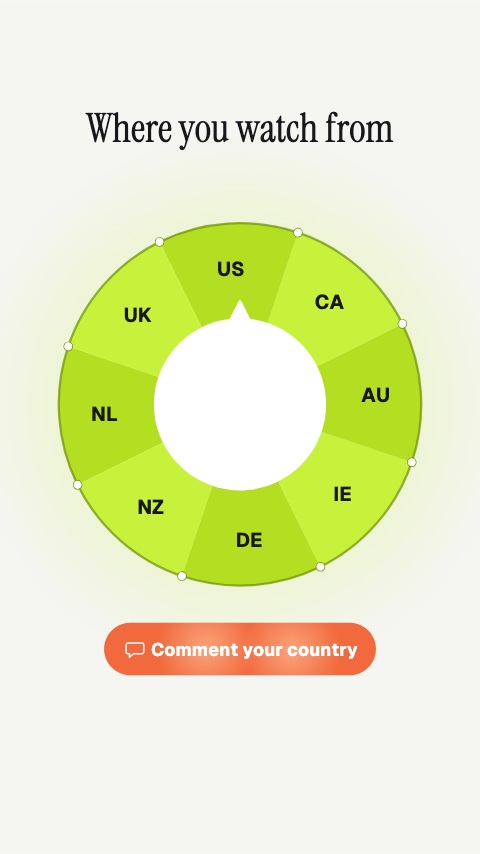 Viewer Countries5s
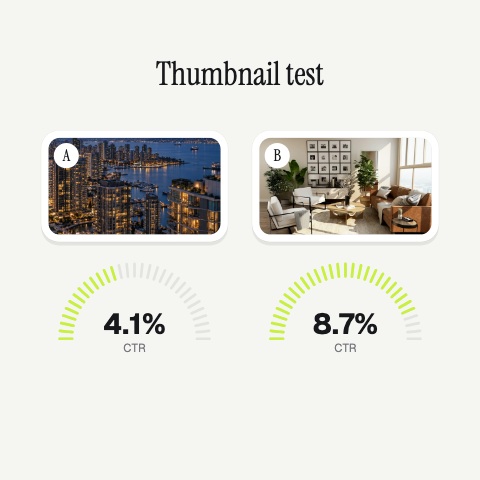 Thumbnail Test5s
 Collab Announce4s
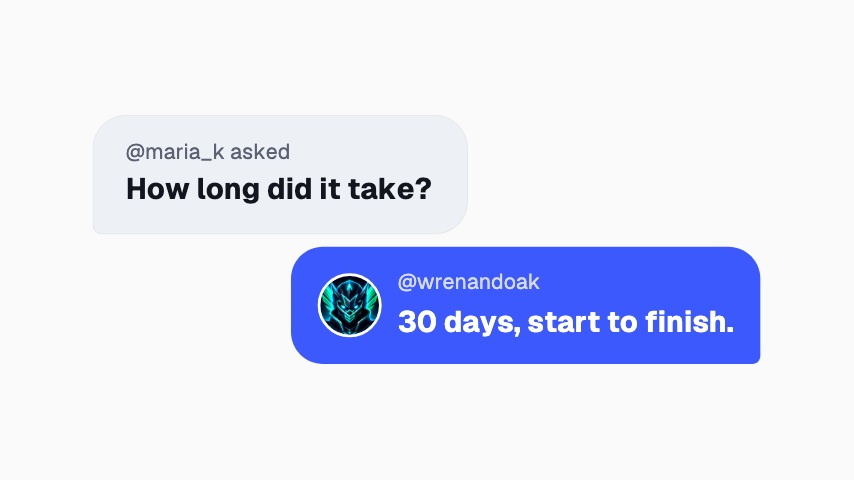 You Asked4s
Subscribe
101 subscribe animations, editable in the browser and exported straight from it.
 Subscribe Tap3s
 Goal Meter3s
 Twitch Follow3s
 Twitch Follow (No Card)3s
 Twitch Follow (Side Slide)3s
 Twitch Follow (Lower Third)3s
 Twitch Follow (Corner Badge)3s
 X Follow3s
 X Follow (No Card)3s
 X Follow (Side Slide)3s
 X Follow (Lower Third)3s
 X Follow (Corner Badge)3s
 Facebook Follow3s
 Facebook Follow (No Card)3s
 Facebook Follow (Side Slide)3s
 Facebook Follow (Lower Third)3s
 Facebook Follow (Corner Badge)3s
 YouTube Subscribe3s
 YouTube Subscribe (No Card)3s
 YouTube Subscribe (Side Slide)3s
 YouTube Subscribe (Lower Third)3s
 YouTube Subscribe (Corner Badge)3s
 TikTok Follow3s
 TikTok Follow (No Card)3s
 TikTok Follow (Side Slide)3s
 TikTok Follow (Lower Third)3s
 TikTok Follow (Corner Badge)3s
 Toggle Switch3s
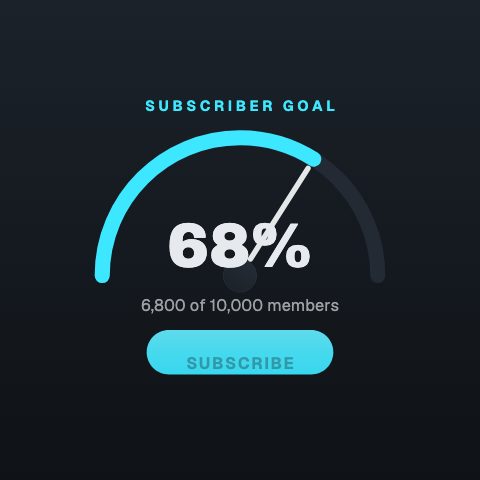 Sub Gauge4s
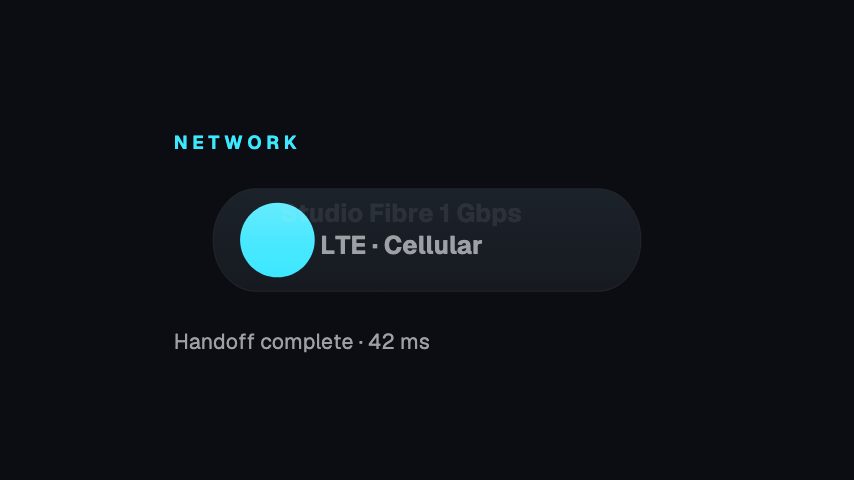 Subscribe Reason3s
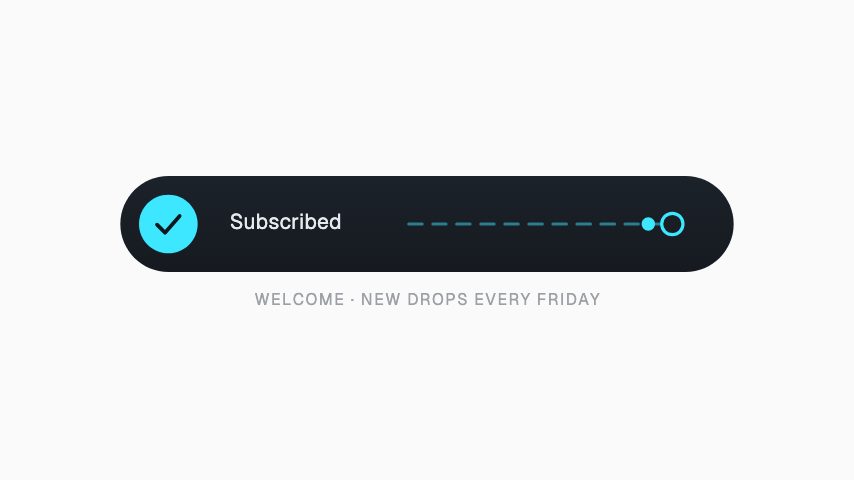 Subscribed3s
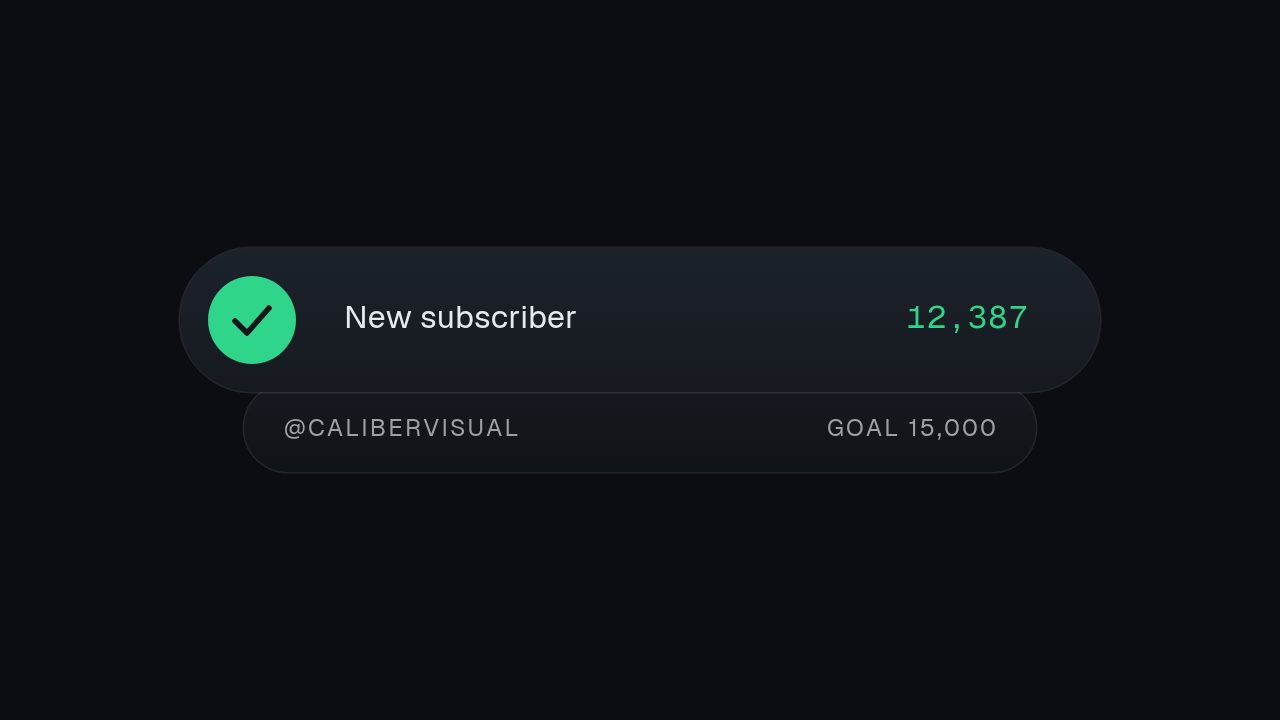 Subscriber Tally3s
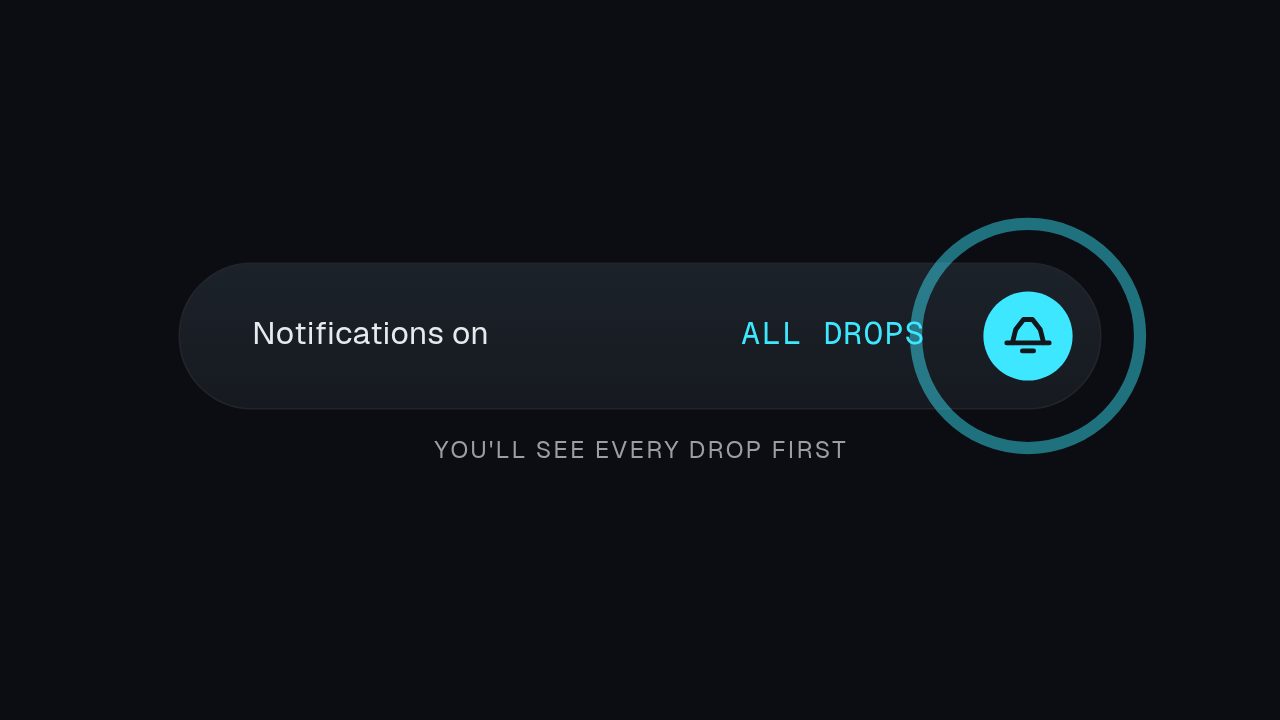 Notifications On3s
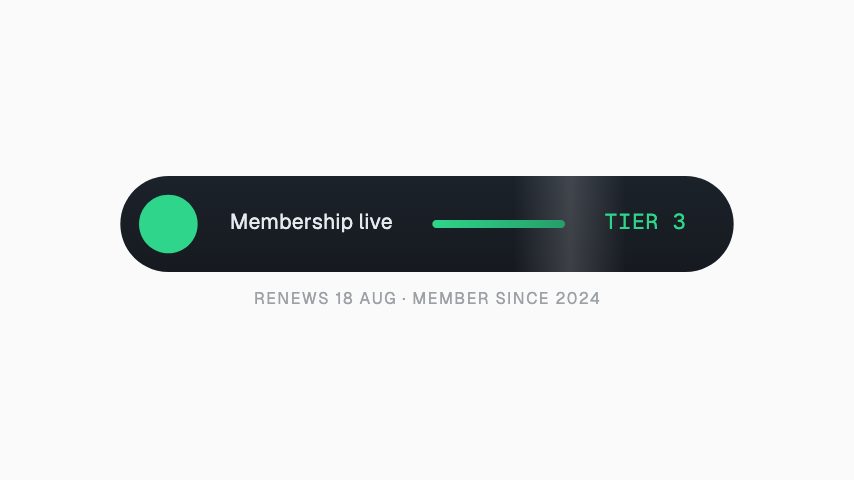 Membership Active3s
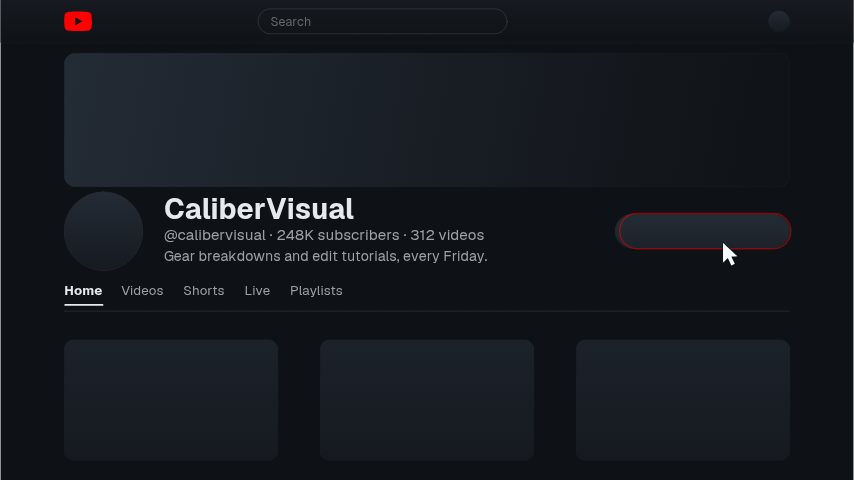 YouTube Channel Page4s
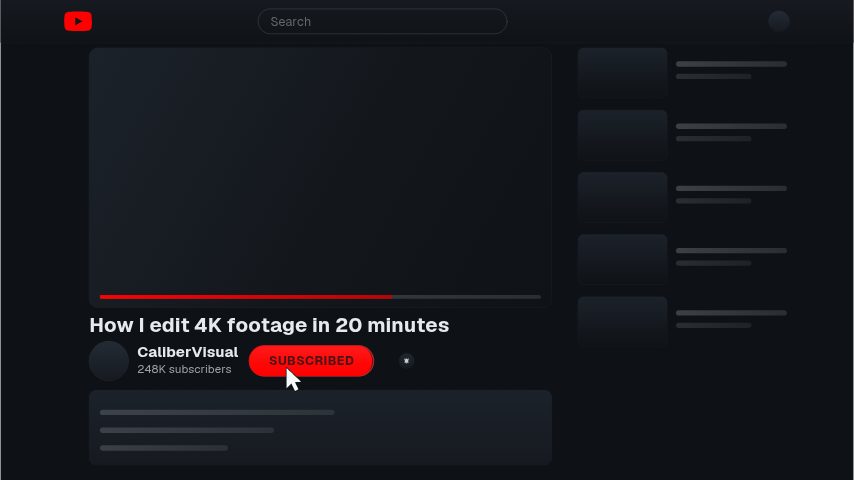 YouTube Watch Page4s
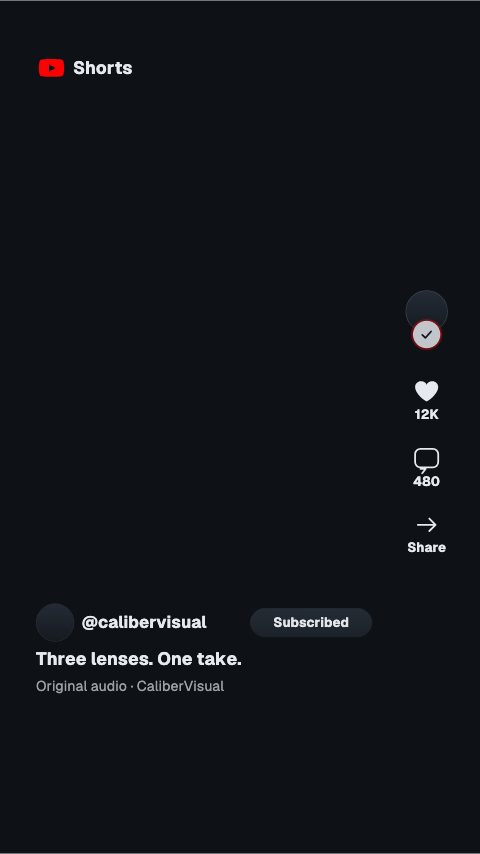 YouTube Shorts4s
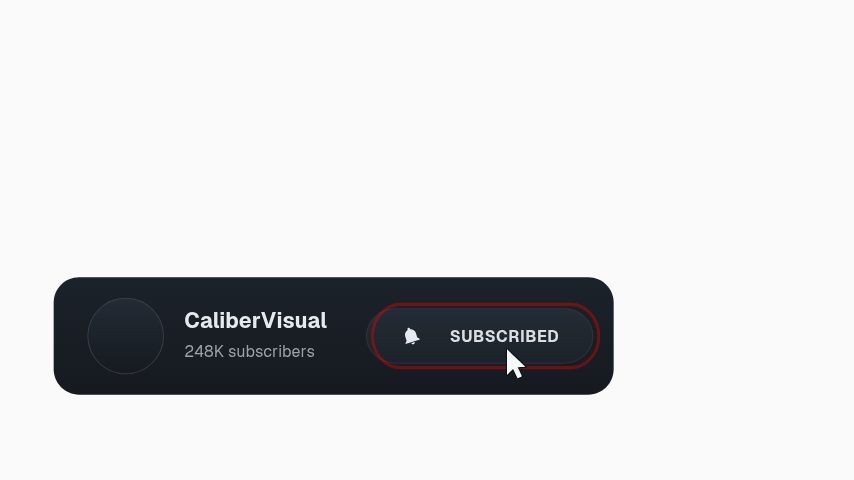 YouTube Subscribe Bar3s
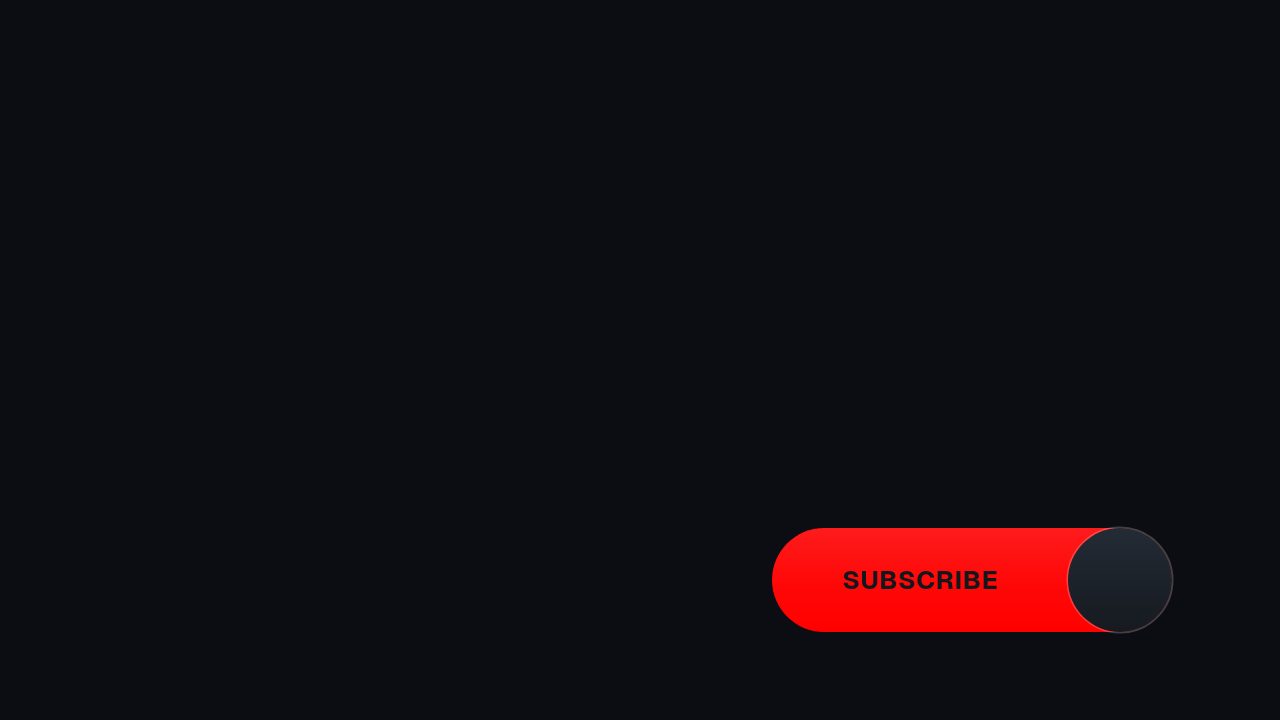 YouTube Corner Watermark3s
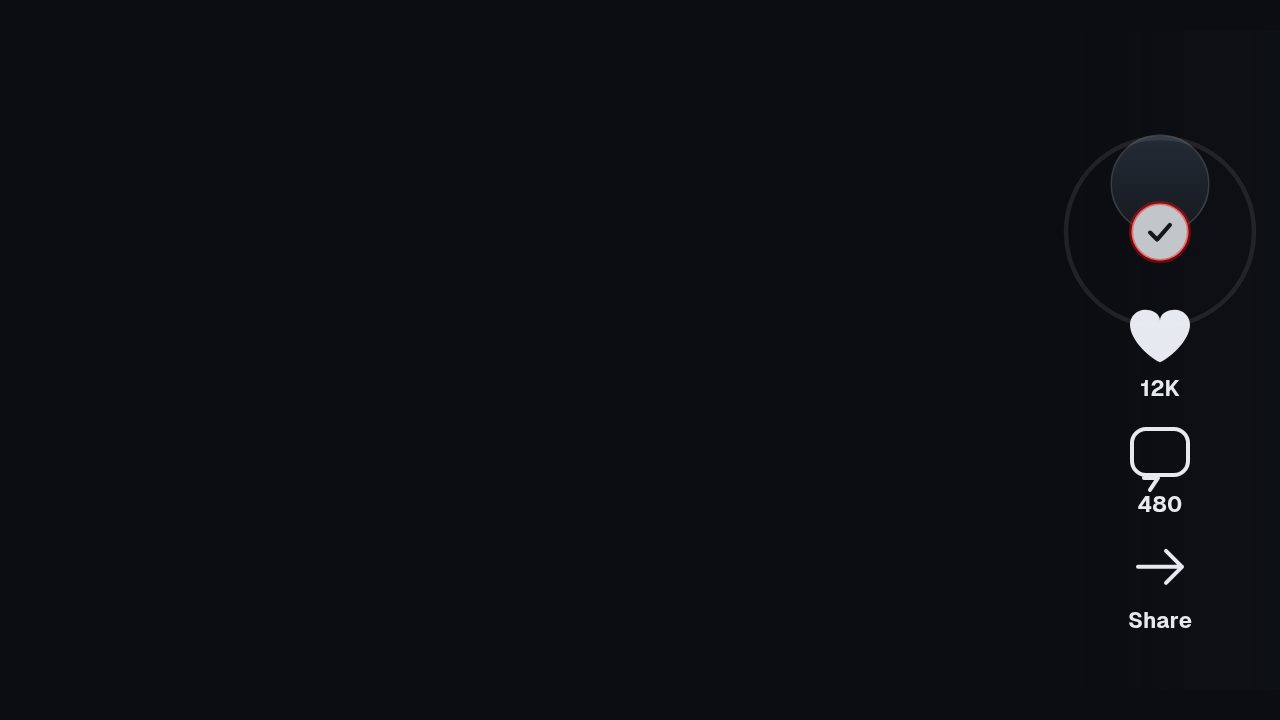 YouTube Shorts Rail3s
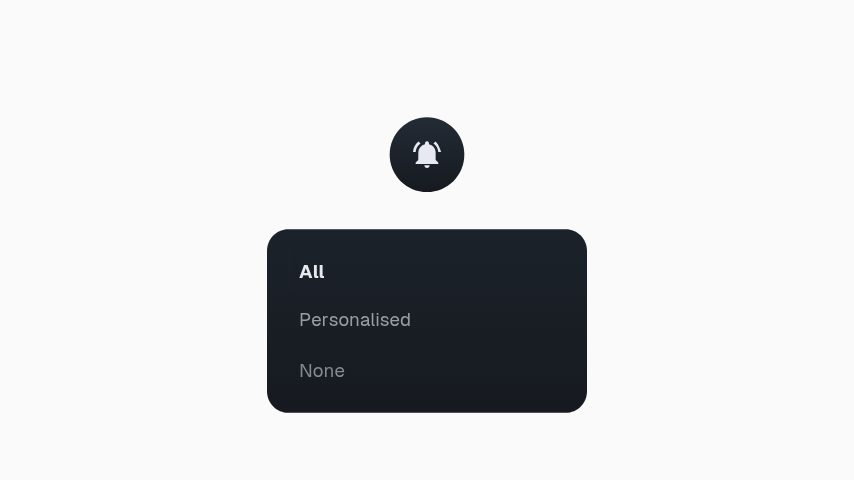 YouTube Bell Menu3s
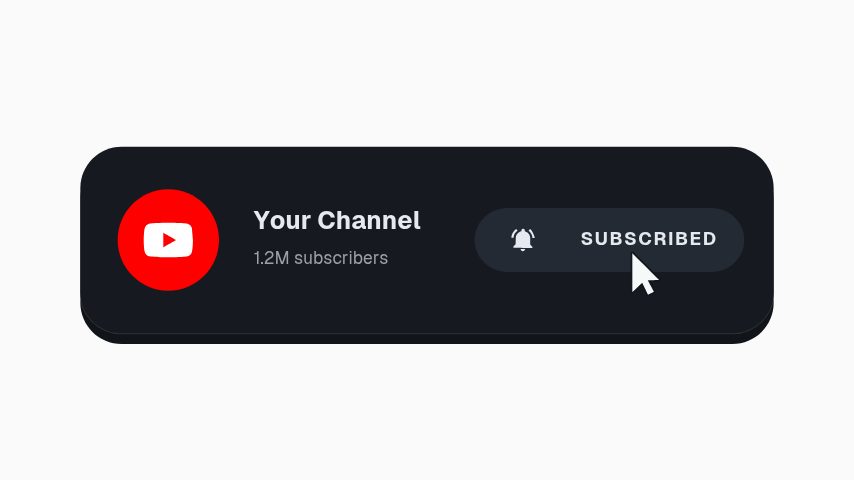 YouTube Subscribe Press3s
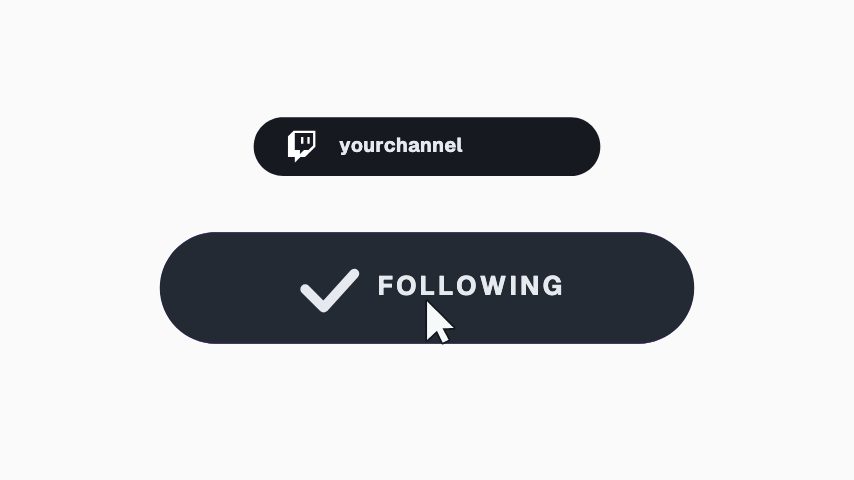 Twitch Hold To Follow3s
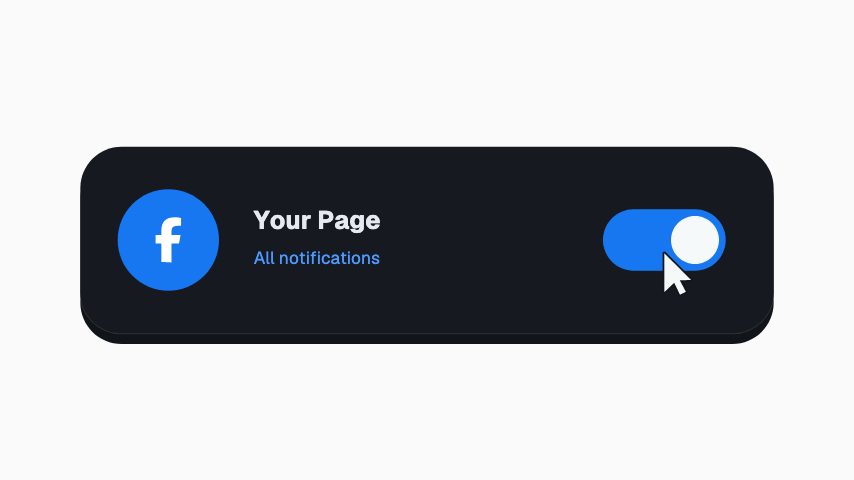 Facebook Notification Toggle3s
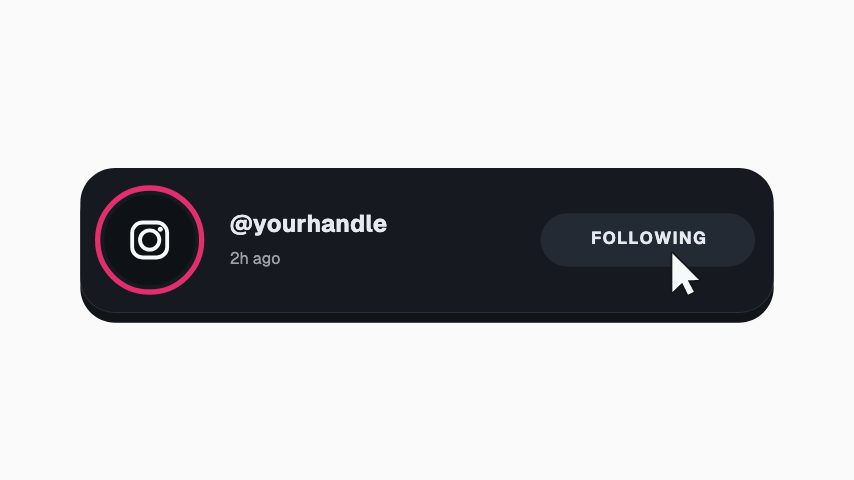 Instagram Story Follow3s
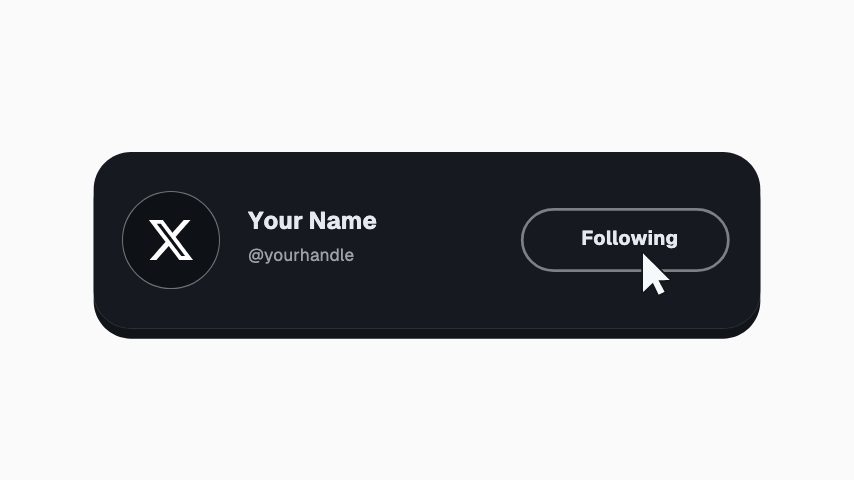 X Follow Press3s
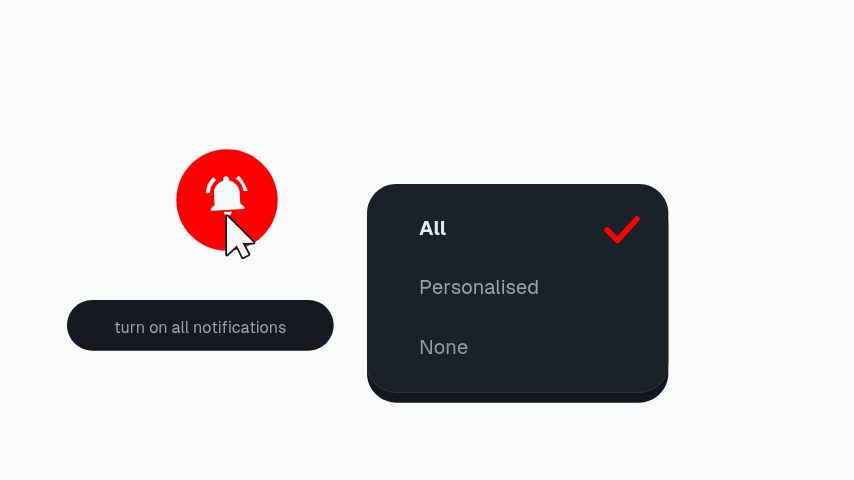 YouTube Bell Menu3s
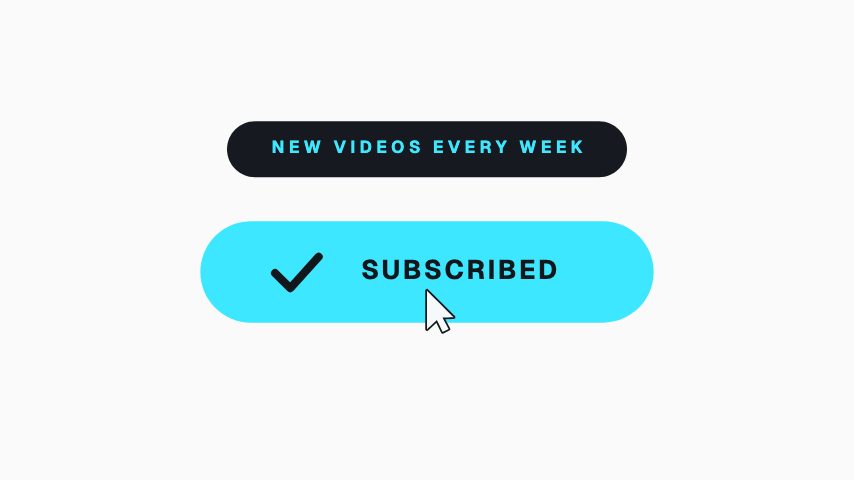 Subscribe Press3s
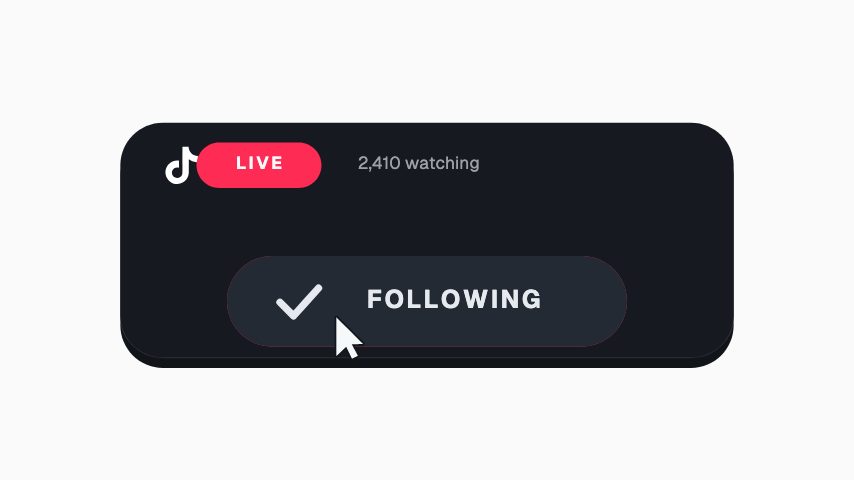 TikTok Live Follow3s
 TikTok Follow Press4s
 TikTok Rail Follow4s
 Instagram Story Swipe4s
 YouTube Shorts Subscribe4s
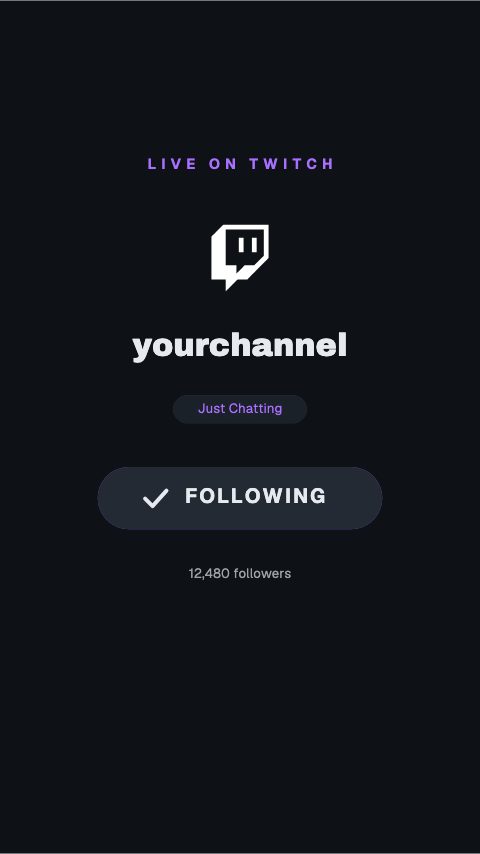 Twitch Mobile Follow4s
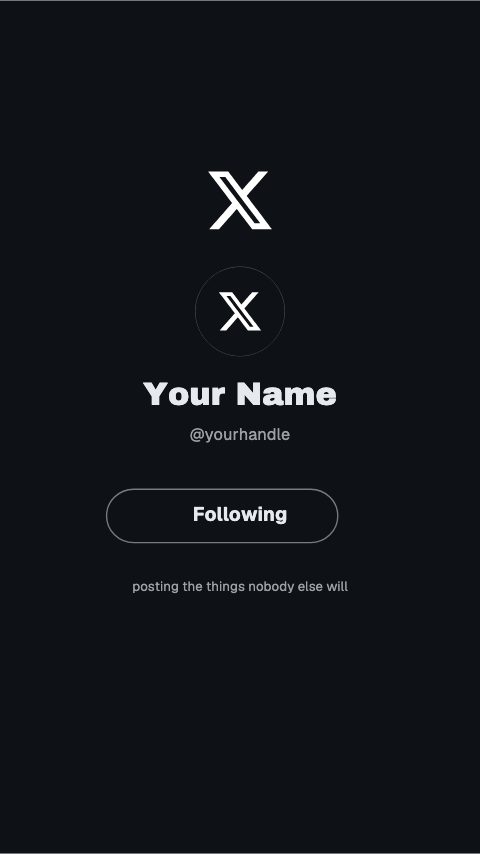 X Profile Follow4s
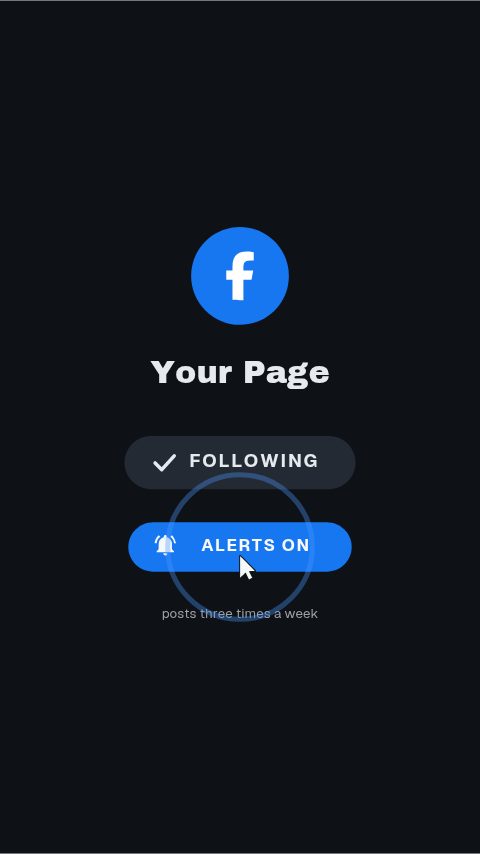 Facebook Page Follow4s
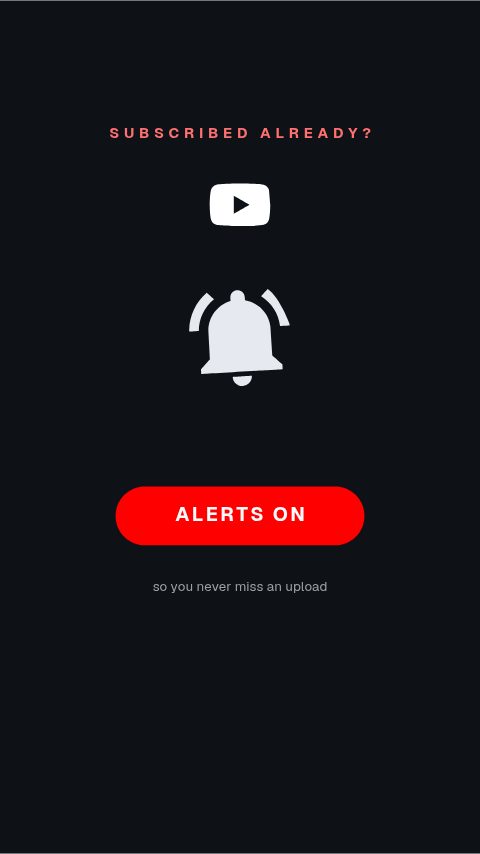 YouTube Bell Vertical4s
 Instagram Hold To Follow4s
 Twitch Follow Press4s
 YouTube Count Press4s
 Instagram Profile Follow4s
 Instagram Page Follow5s
 YouTube Hold To Subscribe4s
 TikTok Follow Square4s
 X Swipe To Follow4s
 Facebook Follow Square4s
 Subscribe And Bell4s
 Instagram Post Notifications4s
 YouTube Subscribe And Bell4s
 X Swipe Follow4s
 YouTube Split End Card4s
 Twitch End Card Follow4s
 TikTok End Card4s
 X End Card4s
 Facebook End Card4s
 YouTube End Card Bar4s
 Follow For Part 23.2s
 Subscribe Percent3s
 Daily Upload Promise3s
 Avatar Orbit Subscribe4s
 Bell Toggle Switch4s
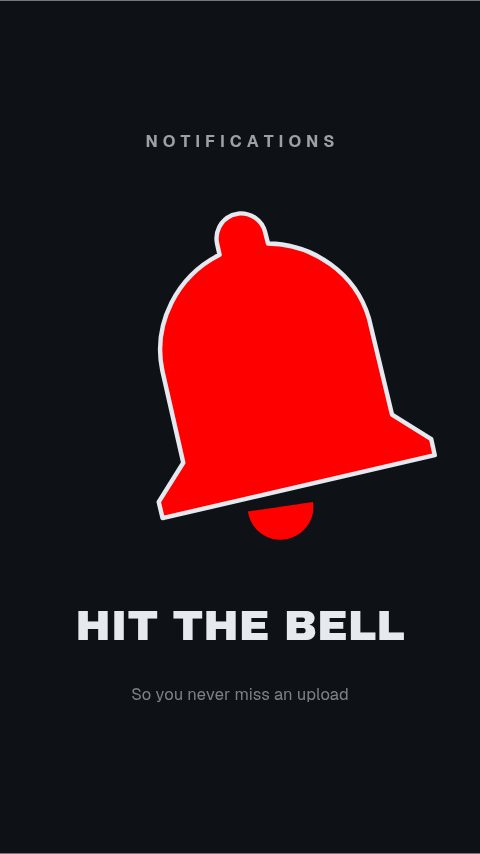 Bell Draw Hero4s
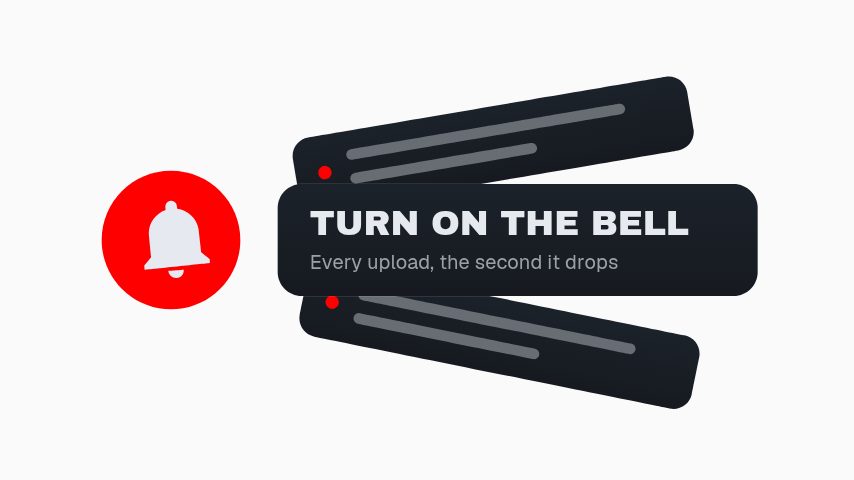 Notification Fan3s
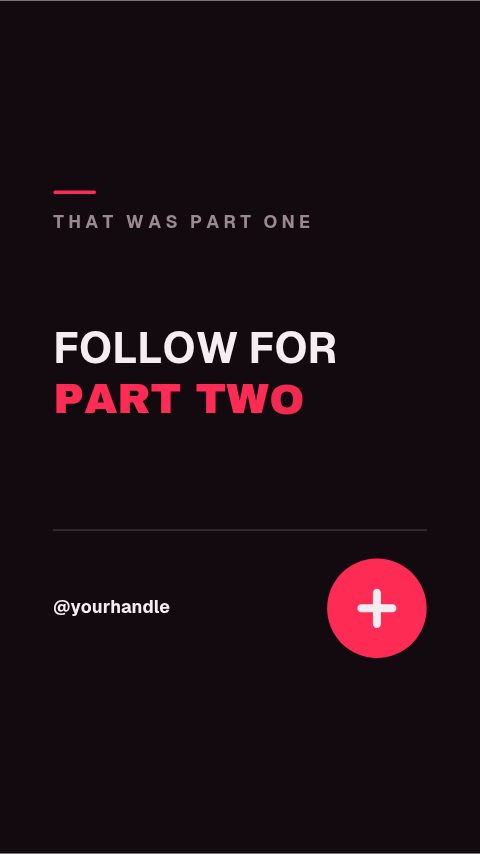 TikTok End Screen4s
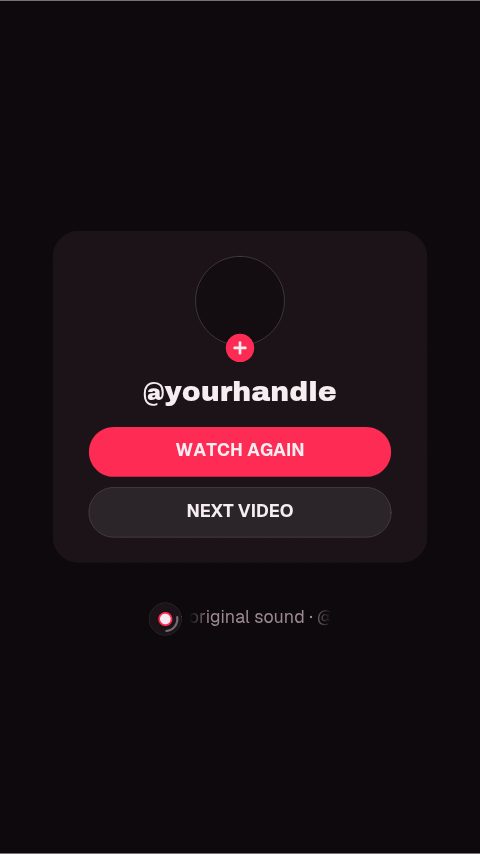 TikTok End Panel4s
 TikTok Outro Credit3.2s
 Triple Ask3s
 Subscribe & Bell Liquid Glass4s
 Channel Sticker3.5s
 Bell Sticker3s
 Subscribe Sticker3s
 You're In Check4s
 Stuck at 99%3.6s
 Gift a Sub3.2s
 Typed Subscribe3s
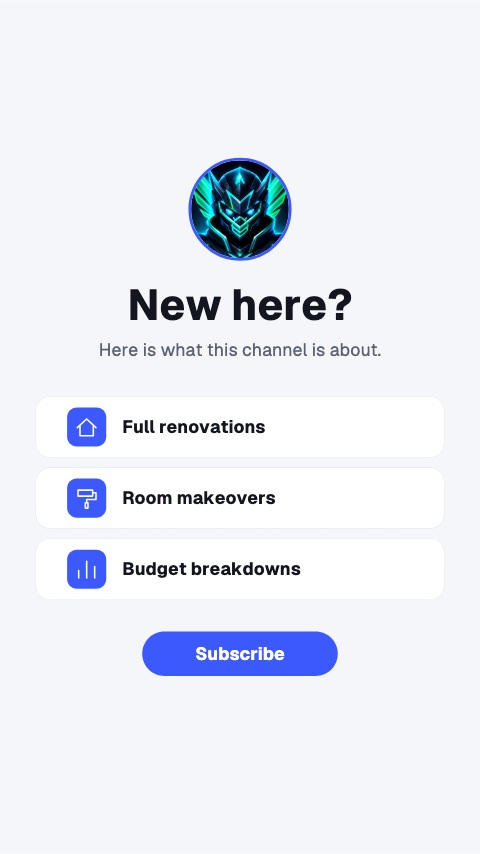 New Here?5s
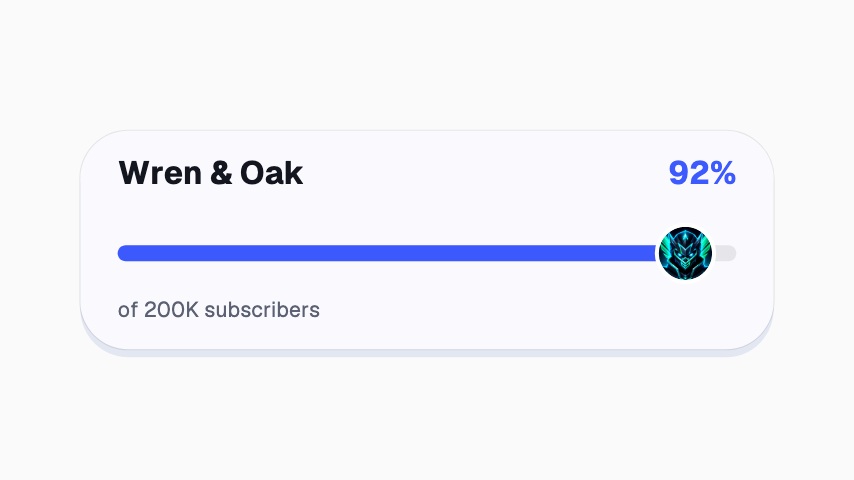 Road to Goal3.5s
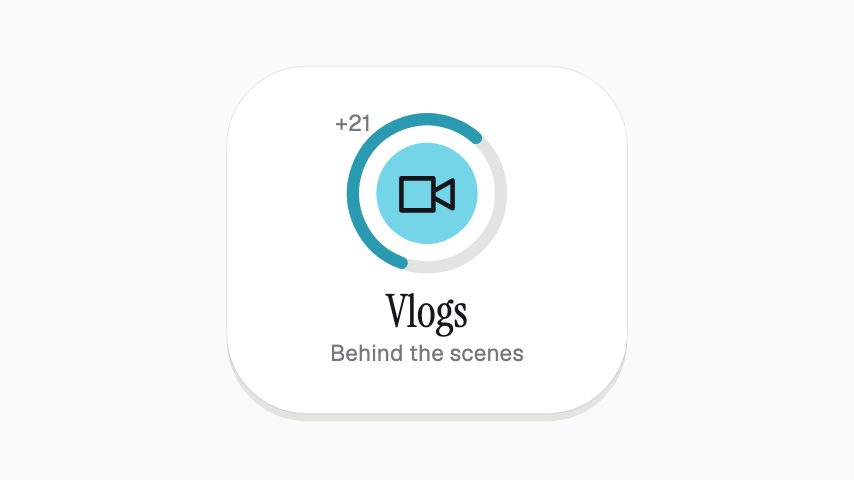 Content Cycler4s
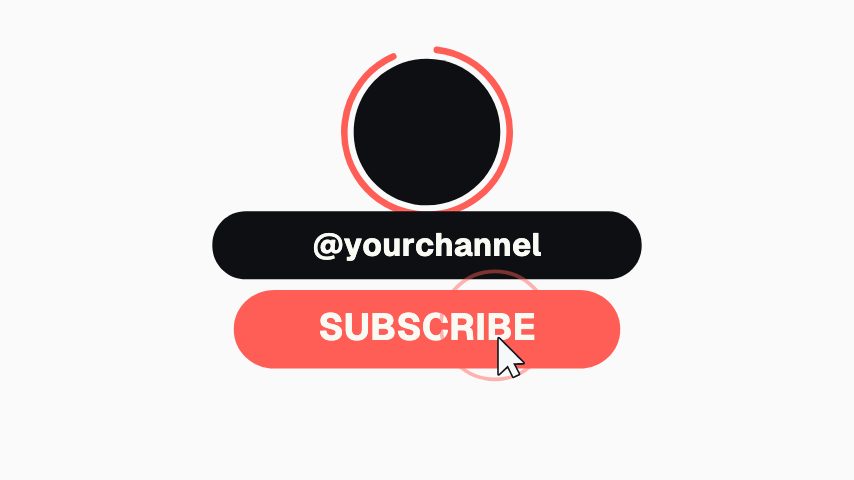 Logo Subscribe4s
 YouTube Channel & Bell4s
 Creator Type Stack4s
Not quite you?
Make gameplay clips look like a channel.
Mark the beat the clip exists for, and ask for the subscribe while it plays. Rank-ups, scorelines, subscribe prompts and end cards, customised in your browser and exported as transparent files that drop straight onto your timeline.
7 animationsTurn an episode into a week of clips.
Get an audio show seen in a feed that plays silently. Guest intros, pull quotes, chapter markers, audiograms and sponsor slates, for the video feed and for the clips account.
8 animationsTake a release from announcement to tour date.
Run a whole release campaign without the midnight session in Canva. Release dates, tracklists, waveforms, tour cards and drop announcements, for the feed, the story and the visualiser.
8 animations
Open one and export something today
All 158 of these open on Pro, free for seven days. Cancel any time.
Start free