
Make gameplay clips look like a channel.
Mark the beat the clip exists for, and ask for the subscribe while it plays. Rank-ups, scorelines, subscribe prompts and end cards, customised in your browser and exported as transparent files that drop straight onto your timeline.

In short
Turn raw gameplay into uploads that look made, in the time it takes to cut the clip. Gaming channels use CaliberVisual for rank-ups, versus scoreboards, achievement pops and subscribe prompts. You pick a ready-made animation, type your own text into it, apply your channel's colours and fonts, and export a MOV with a real alpha channel. That file drops onto a timeline in Premiere Pro, DaVinci Resolve, Final Cut or Vegas. There is no After Effects project to open, no plugin to buy and nothing to render on your own machine.
- 184
- Animations here
- 525
- In the library
- MP4, GIF, MOV
- Export
- 24 · 30 · 60 fps
- Frame rate
- 720p to 4K
- Resolution
- In the browser
- Editing
What gaming YouTubers put on screen
Mark the moment the clip exists for
Most gaming videos are built around four or five beats that earn a cut. These are the graphics that tell a viewer which one they are watching, arriving on the frame that matters instead of a second after it.
Ask for the subscribe without stopping the video
The same request in five weights, so you can put one wherever the frame has room. A corner watermark can stay up for a long take. A lower third fits under a callout. The full card is for the beat where you actually ask.
Numbers worth a pinned comment
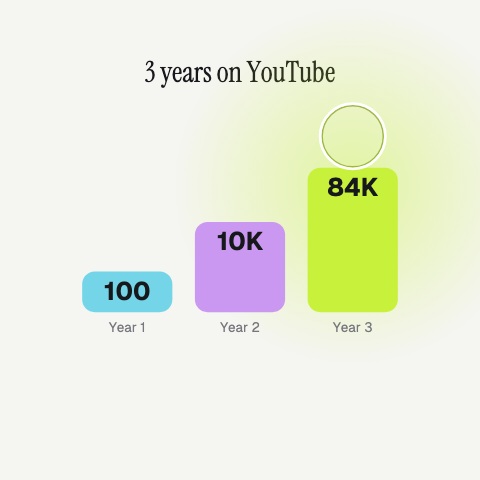
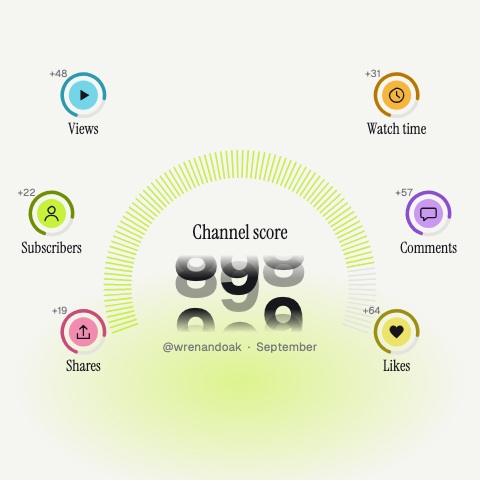
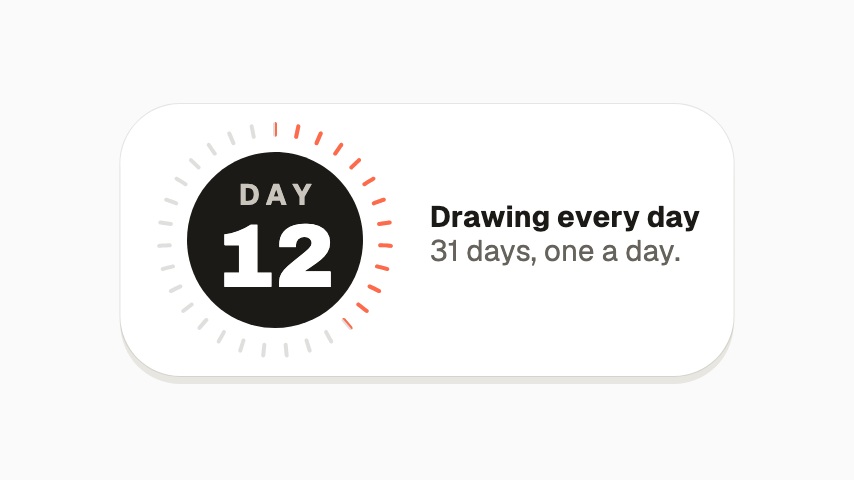
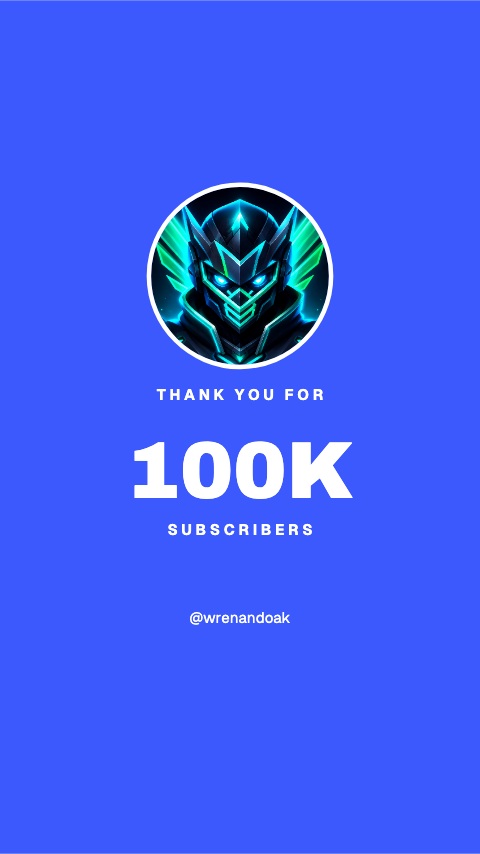
Subscriber counts, channel anniversaries and the milestones a community turns up for. Worth marking properly once, rather than screenshotting the analytics page.
How to make a gaming overlay for YouTube
- 01
Pick the moment you are marking
Open the animation that fits the beat you are cutting to: a rank-up, a scoreline, an unlock, a subscribe prompt.
- 02
Put your own words in it
Type the rank, the score or the callout into the text fields. Apply your channel's brand kit to recolour and retype the whole thing at once.
- 03
Export a transparent MOV
Choose MOV, match the frame rate to your footage, and export. Drop the file on a track above your gameplay and it composites with nothing behind it.
How these land in your workflow
Overlay, not a background
Exported as MOV with a real alpha channel, so an animation sits over gameplay with nothing behind it. No black box, no chroma key, no masking work in the edit.
16:9 and 9:16
Some animations are authored wide for the main upload and some tall for Shorts, so a vertical clip gets an overlay built for the frame rather than one squeezed into it.
24, 30 or 60 fps
Match the footage you are cutting into. A 60 fps overlay on 30 fps gameplay is render time you never see. A 30 fps overlay on 60 fps gameplay is render time you do.
Two to eight seconds
Long enough to read on a phone, short enough that the play underneath is still the reason the clip exists.
Questions gaming YouTubers ask
Do I need After Effects?
No. Everything happens in your browser. You open an animation, change its text, colours, fonts and media, watch it play at the size you are publishing at, and export a finished file. There is no project file, no render queue and nothing to install.
Will the overlay have a background behind it?
Not if you export MOV. That format keeps a real alpha channel, so transparent parts of the animation stay transparent when your editor composites it over gameplay. MP4 cannot carry transparency, so if you export MP4 you choose a background colour instead.
Which editors do the exports work in?
Any editor that reads a QuickTime file with an alpha channel, which covers Premiere Pro, DaVinci Resolve, Final Cut Pro and Vegas. Drop the MOV on a track above your footage and it composites without further setup. Where an editor cannot read alpha, export the MP4 over a background colour that matches the shot.
Can I match my channel's colours and fonts?
Yes. A brand kit stores your colours, typeface and logo once, and applying it recolours and retypes any animation in the library in a single step. That is most of the value if you publish twice a week, because the graphics stay recognisably yours without you rebuilding them.
Can I use these in monetised videos?
Yes. Exports are yours to publish, including on monetised channels and in sponsored videos. The animations are not stock clips with a licence attached to each use.
What about Shorts?
Several animations are authored 9:16, and the editor previews at the shape you are publishing to, so you see the safe area before you export rather than after. For a Shorts-first channel, the subscribe rail and the corner watermark do the most work.
Every animation for gaming YouTubers
Gaming
5 gaming animations, editable in the browser and exported straight from it.
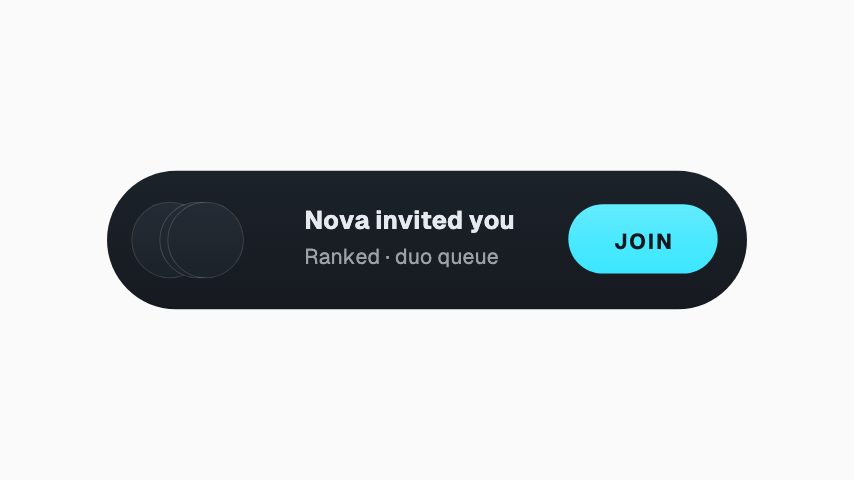
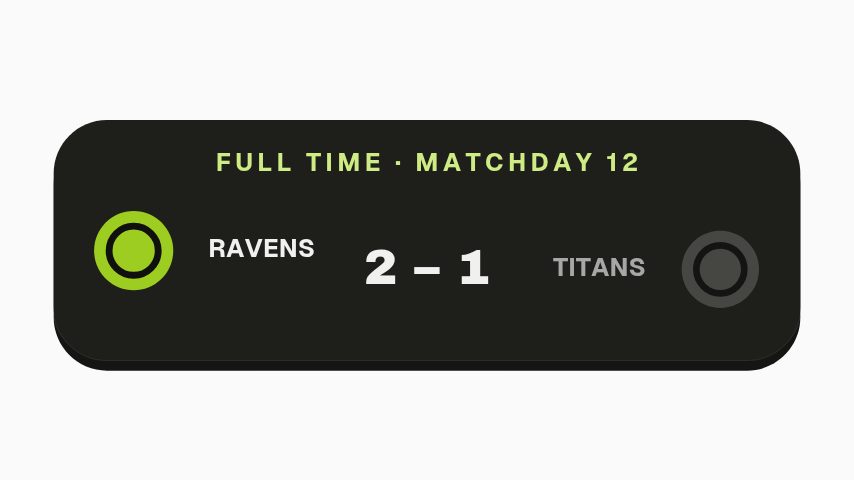
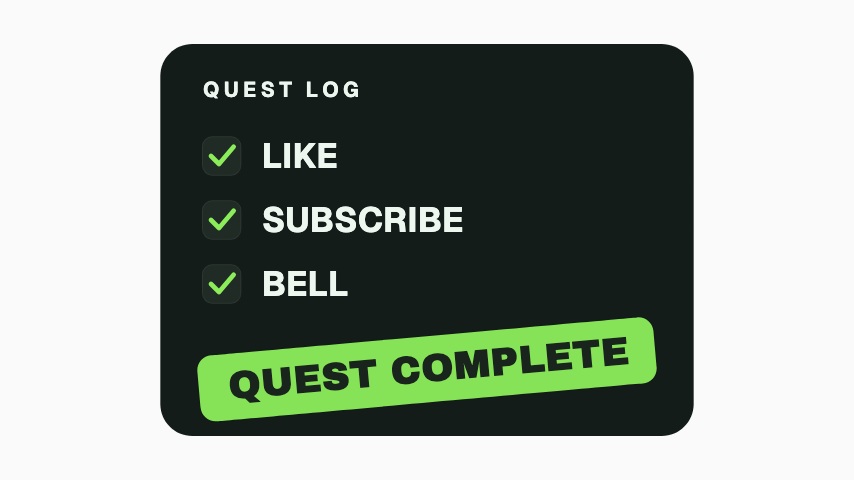
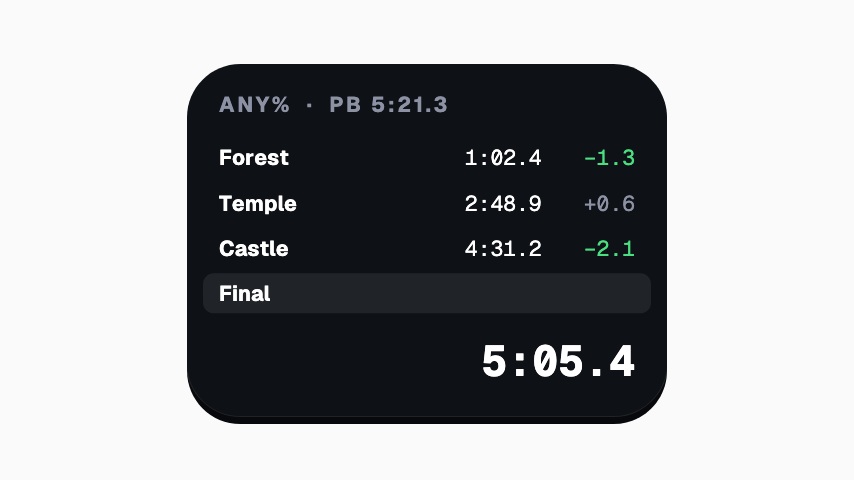
Subscribe
101 subscribe animations, editable in the browser and exported straight from it.
 Subscribe Tap3s
 Goal Meter3s
 Twitch Follow3s
 Twitch Follow (No Card)3s
 Twitch Follow (Side Slide)3s
 Twitch Follow (Lower Third)3s
 Twitch Follow (Corner Badge)3s
 X Follow3s
 X Follow (No Card)3s
 X Follow (Side Slide)3s
 X Follow (Lower Third)3s
 X Follow (Corner Badge)3s
 Facebook Follow3s
 Facebook Follow (No Card)3s
 Facebook Follow (Side Slide)3s
 Facebook Follow (Lower Third)3s
 Facebook Follow (Corner Badge)3s
 YouTube Subscribe3s
 YouTube Subscribe (No Card)3s
 YouTube Subscribe (Side Slide)3s
- YouTube Subscribe (Lower Third)3s
 YouTube Subscribe (Corner Badge)3s
 TikTok Follow3s
 TikTok Follow (No Card)3s
 TikTok Follow (Side Slide)3s
 TikTok Follow (Lower Third)3s
 TikTok Follow (Corner Badge)3s
 Toggle Switch3s
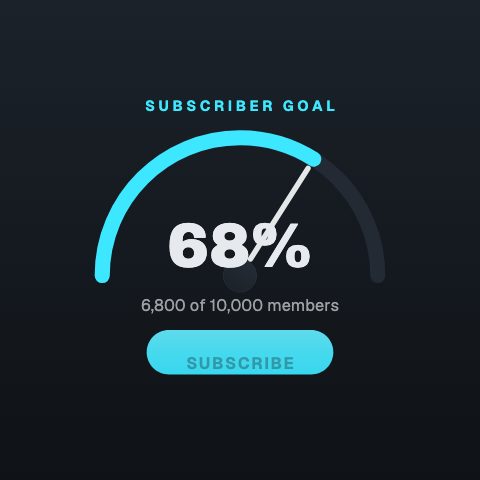 Sub Gauge4s
 Subscribe Reason3s
 Subscribed3s
 Subscriber Tally3s
 Notifications On3s
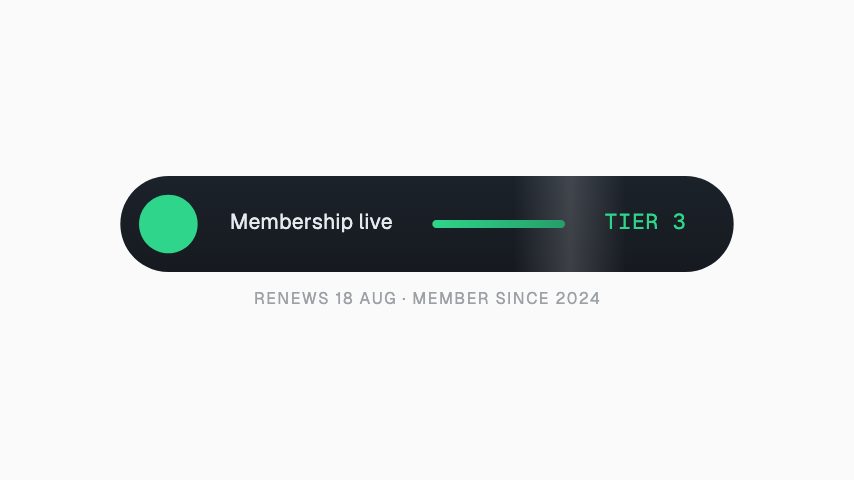 Membership Active3s
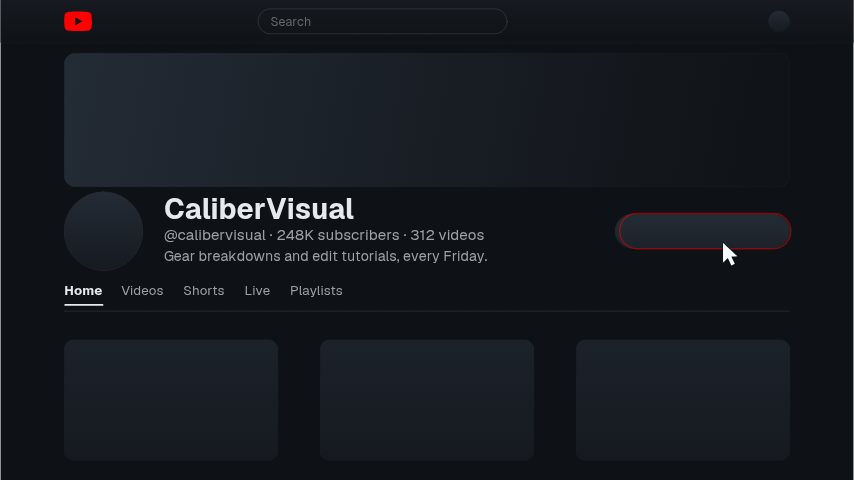 YouTube Channel Page4s
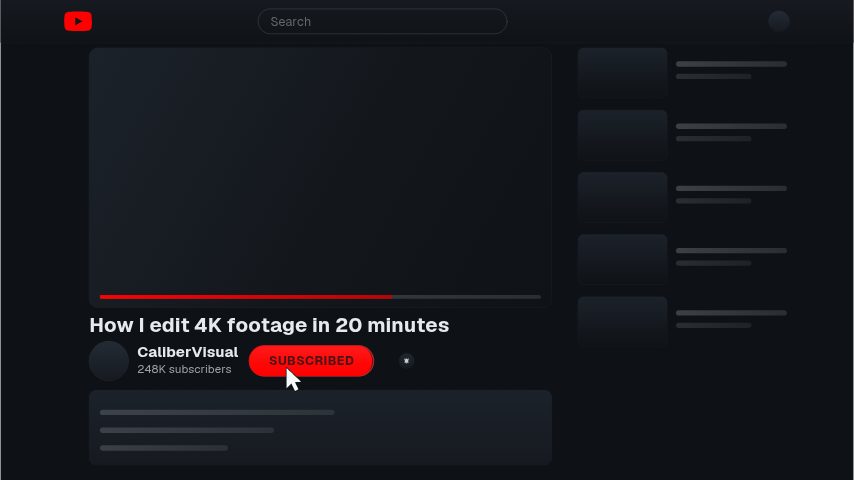 YouTube Watch Page4s
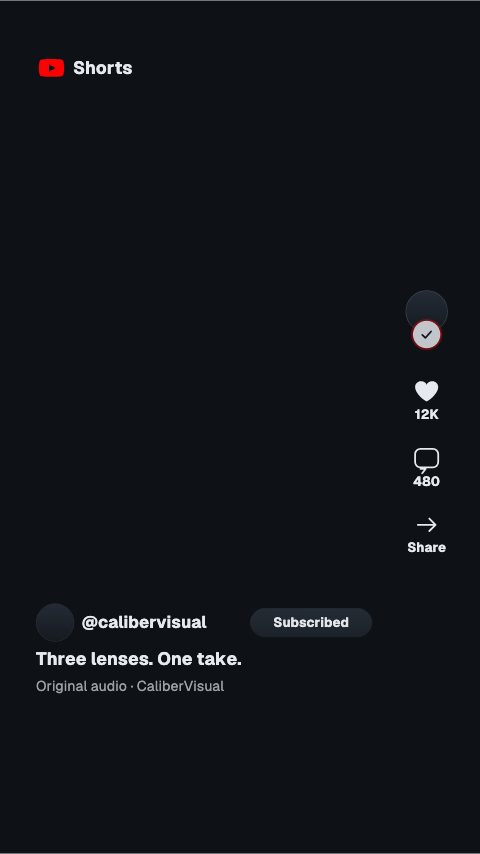 YouTube Shorts4s
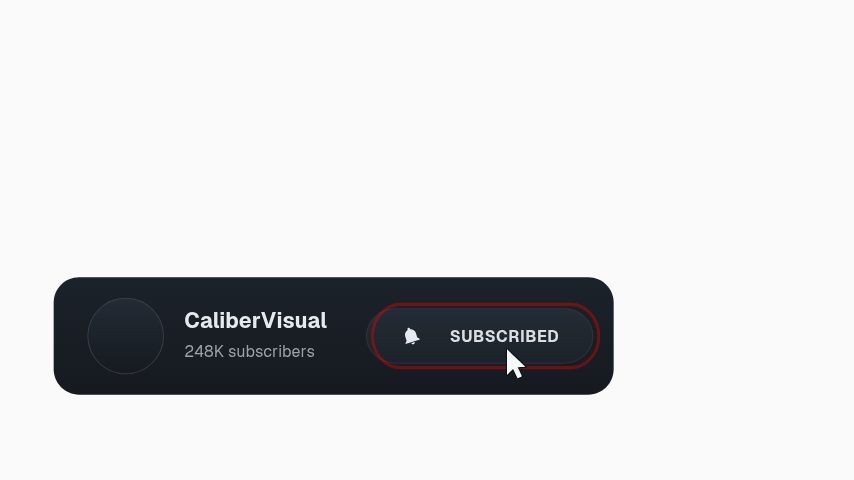 YouTube Subscribe Bar3s
- YouTube Corner Watermark3s
- YouTube Shorts Rail3s
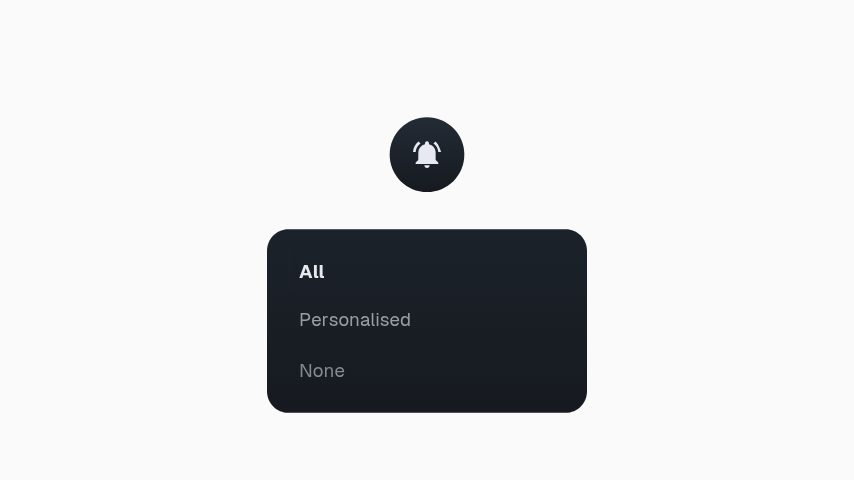 YouTube Bell Menu3s
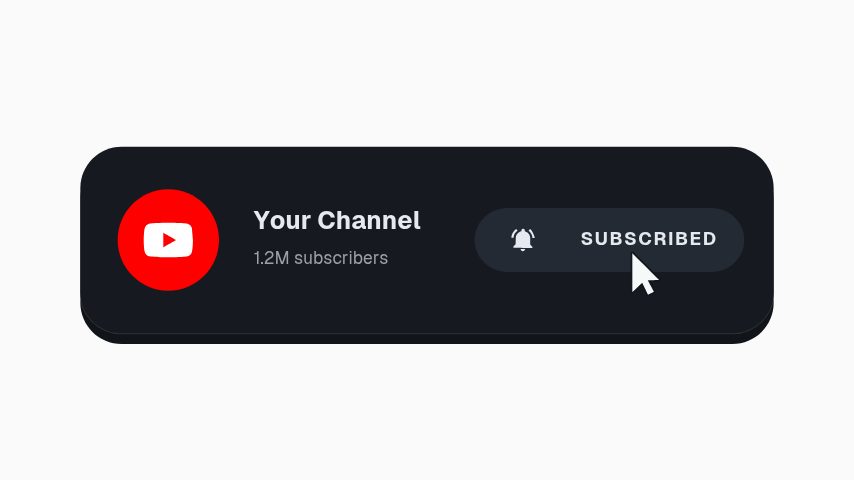 YouTube Subscribe Press3s
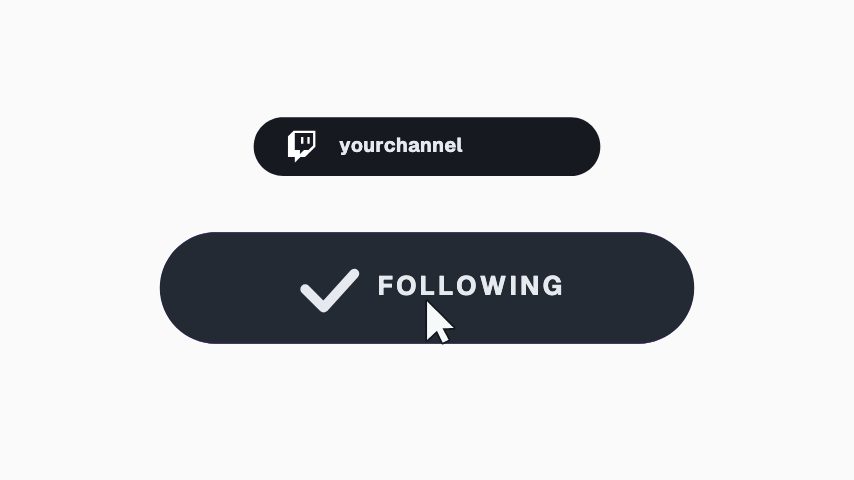 Twitch Hold To Follow3s
 Facebook Notification Toggle3s
 Instagram Story Follow3s
 X Follow Press3s
 YouTube Bell Menu3s
 Subscribe Press3s
 TikTok Live Follow3s
 TikTok Follow Press4s
 TikTok Rail Follow4s
 Instagram Story Swipe4s
 YouTube Shorts Subscribe4s
 Twitch Mobile Follow4s
 X Profile Follow4s
 Facebook Page Follow4s
 YouTube Bell Vertical4s
 Instagram Hold To Follow4s
 Twitch Follow Press4s
 YouTube Count Press4s
 Instagram Profile Follow4s
 Instagram Page Follow5s
 YouTube Hold To Subscribe4s
 TikTok Follow Square4s
 X Swipe To Follow4s
 Facebook Follow Square4s
 Subscribe And Bell4s
 Instagram Post Notifications4s
 YouTube Subscribe And Bell4s
 X Swipe Follow4s
 YouTube Split End Card4s
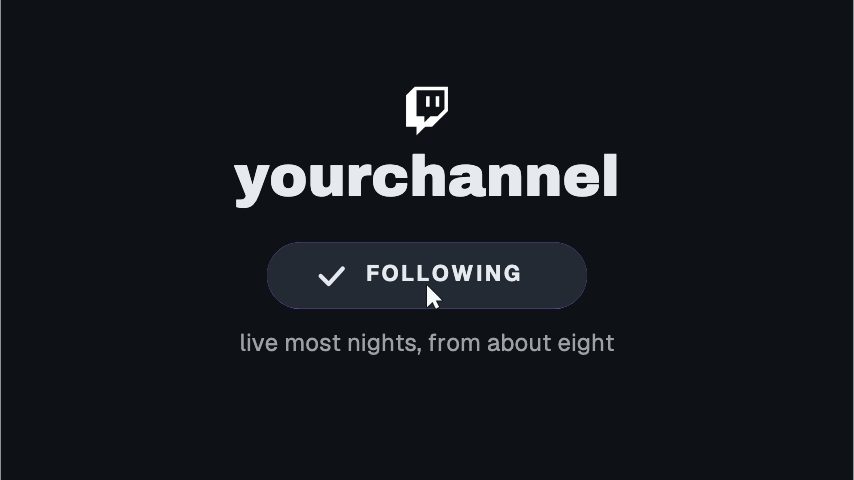 Twitch End Card Follow4s
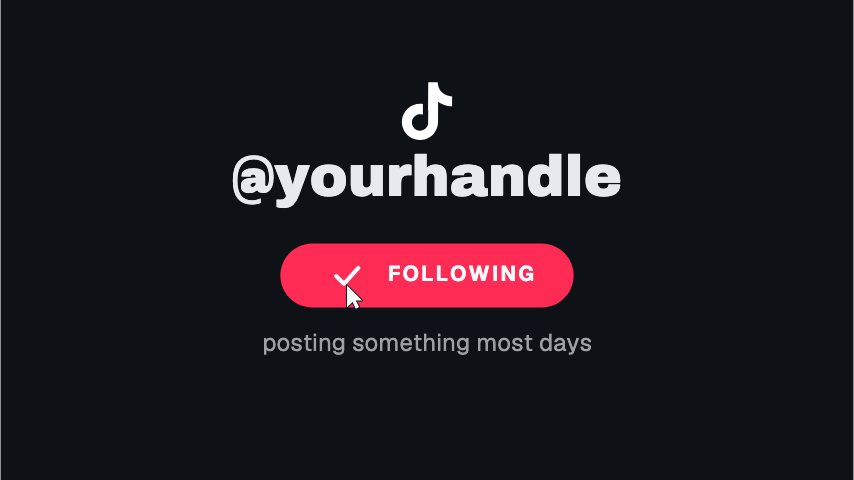 TikTok End Card4s
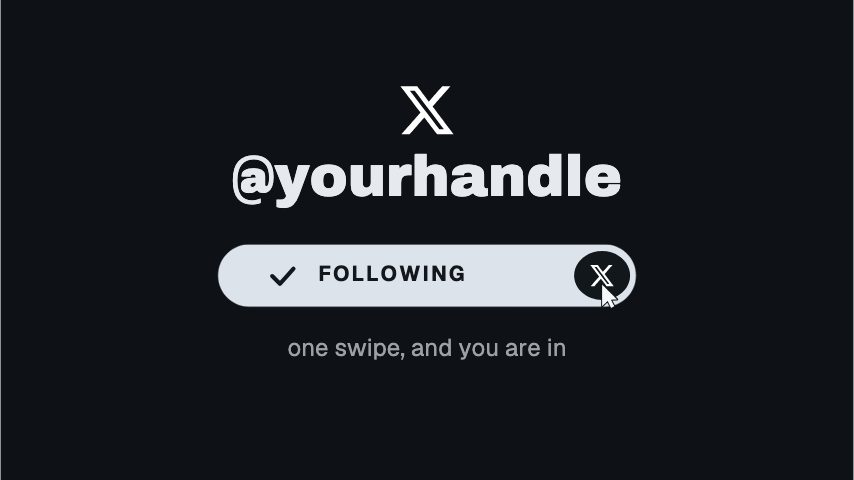 X End Card4s
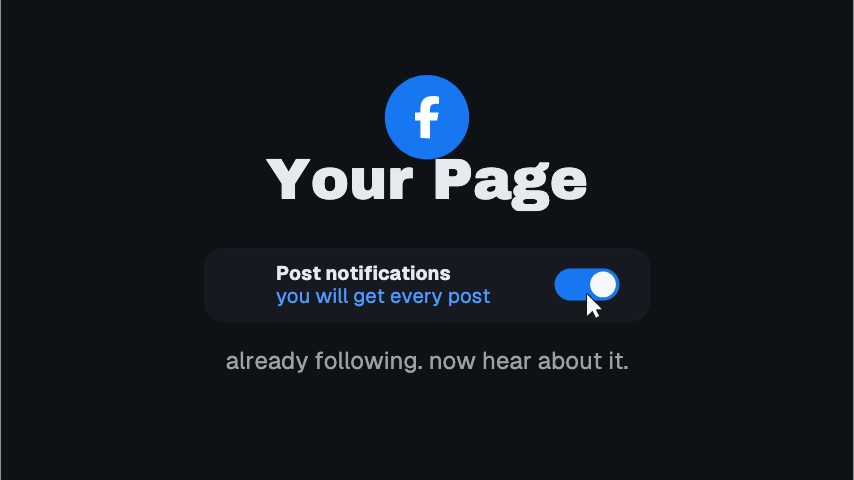 Facebook End Card4s
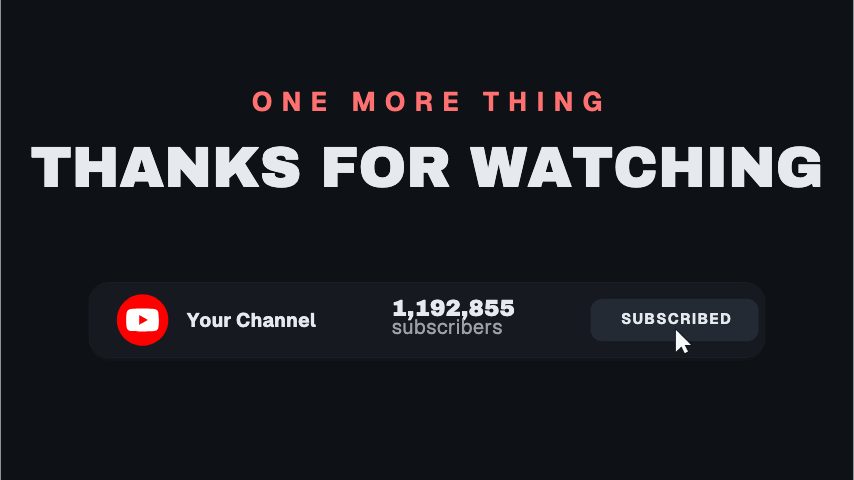 YouTube End Card Bar4s
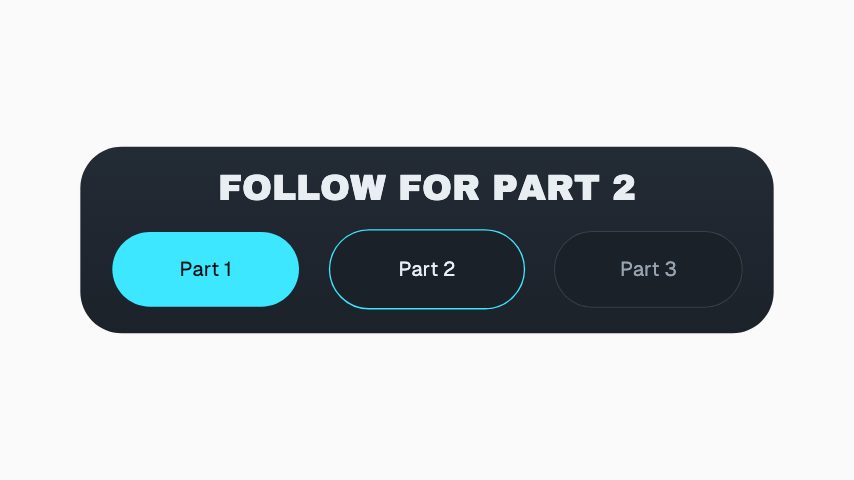 Follow For Part 23.2s
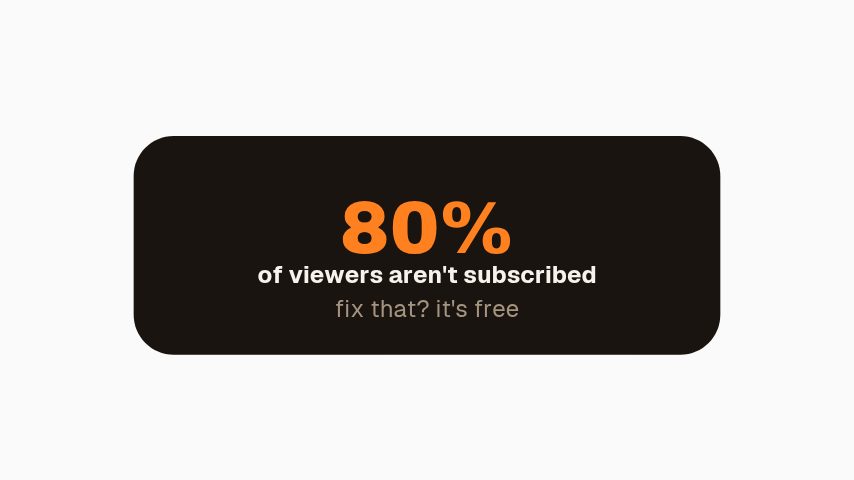 Subscribe Percent3s
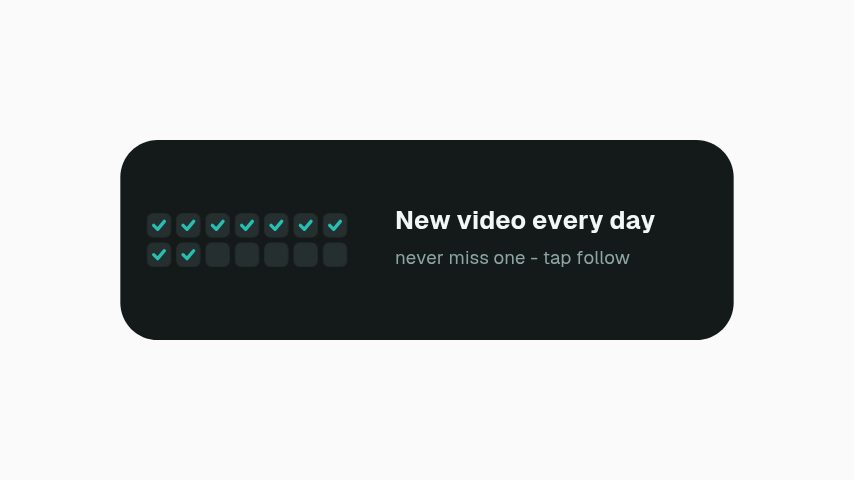 Daily Upload Promise3s
 Avatar Orbit Subscribe4s
 Bell Toggle Switch4s
 Bell Draw Hero4s
 Notification Fan3s
 TikTok End Screen4s
 TikTok End Panel4s
 TikTok Outro Credit3.2s
 Triple Ask3s
 Subscribe & Bell Liquid Glass4s
 Channel Sticker3.5s
 Bell Sticker3s
 Subscribe Sticker3s
 You're In Check4s
 Stuck at 99%3.6s
 Gift a Sub3.2s
 Typed Subscribe3s
 New Here?5s
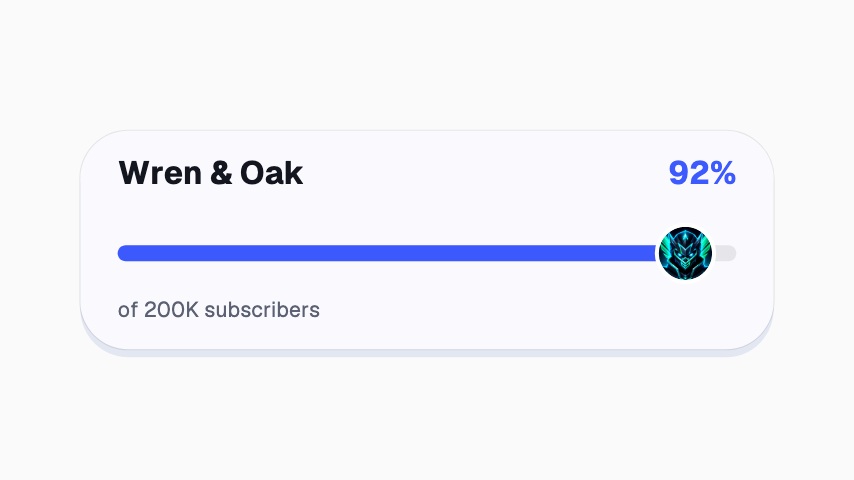 Road to Goal3.5s
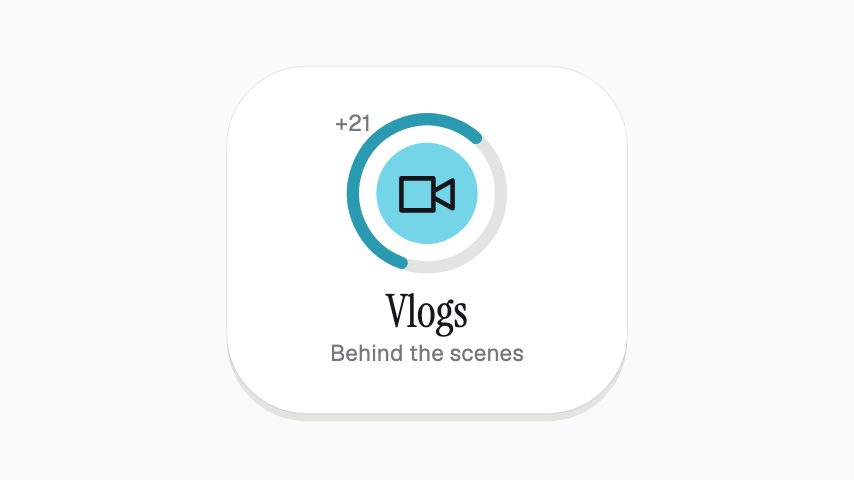 Content Cycler4s
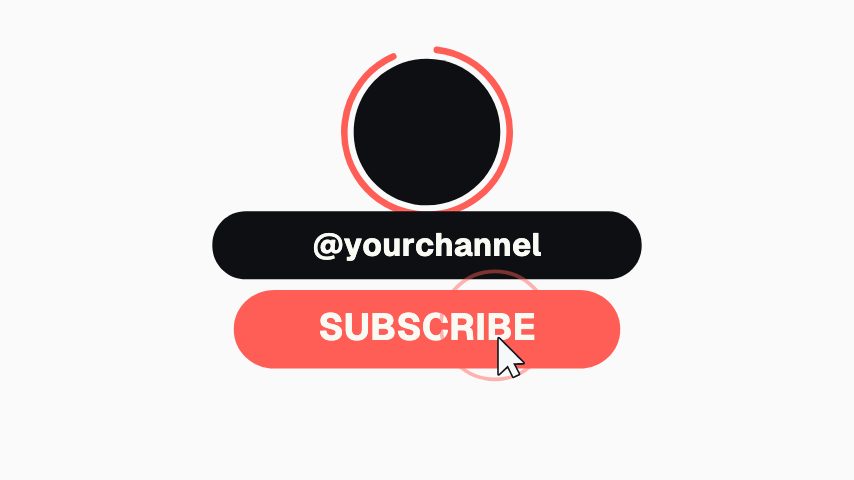 Logo Subscribe4s
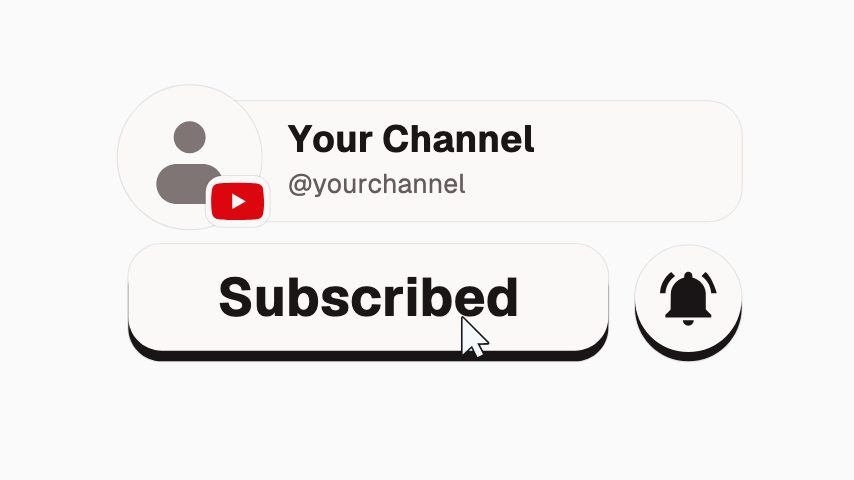 YouTube Channel & Bell4s
 Creator Type Stack4s
Milestone
8 milestone animations, editable in the browser and exported straight from it.
Promo
70 promo animations, editable in the browser and exported straight from it.
 Bento Grid4s
 Launch Cut8s
 Checkout Steps3s
 Scroll Cue3s
 Launch Radar4s
 Quantity Left4s
 Scratch Code4s
 Screenshot This4s
 Free Download3s
 Join The List3s
 Problem, Product, Result9s
 Giveaway Now Open3s
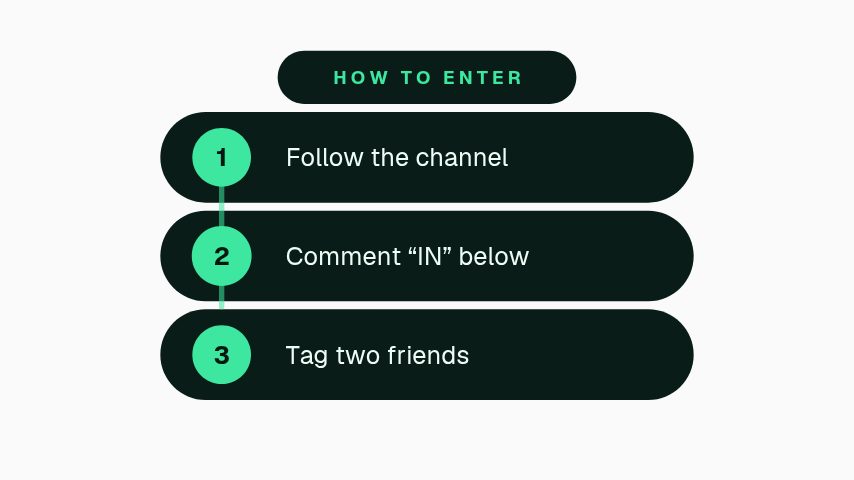 How to Enter3.5s
 Prize Fan3.5s
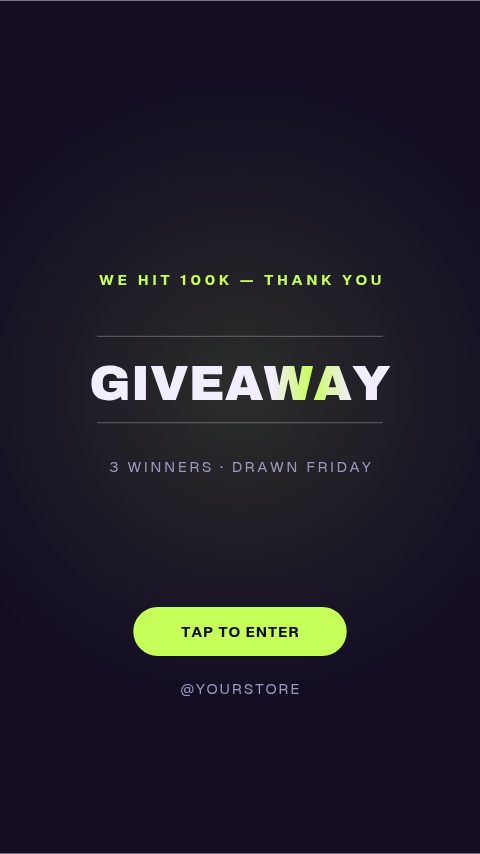 Giveaway Day4s
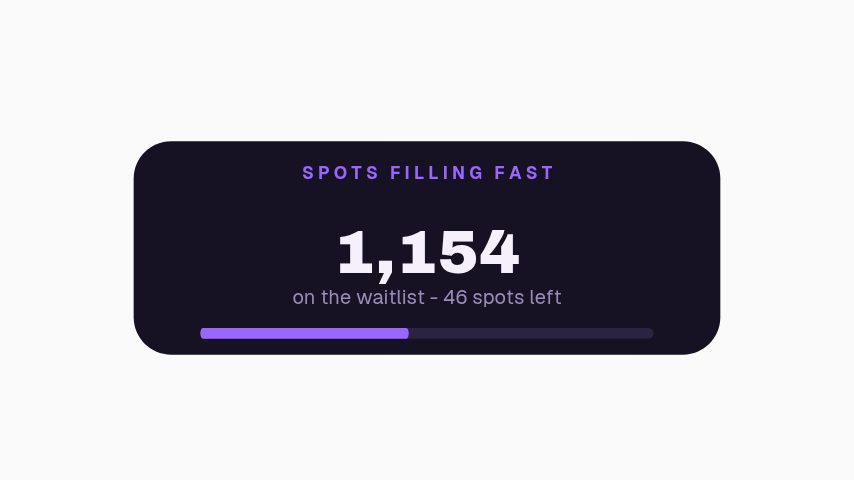 Waitlist Urgency3s
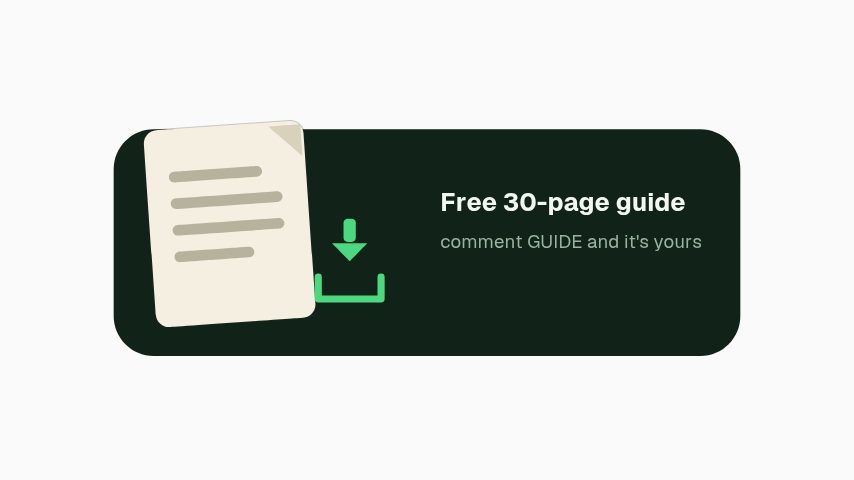 Free Guide Magnet3s
 QR Scan3s
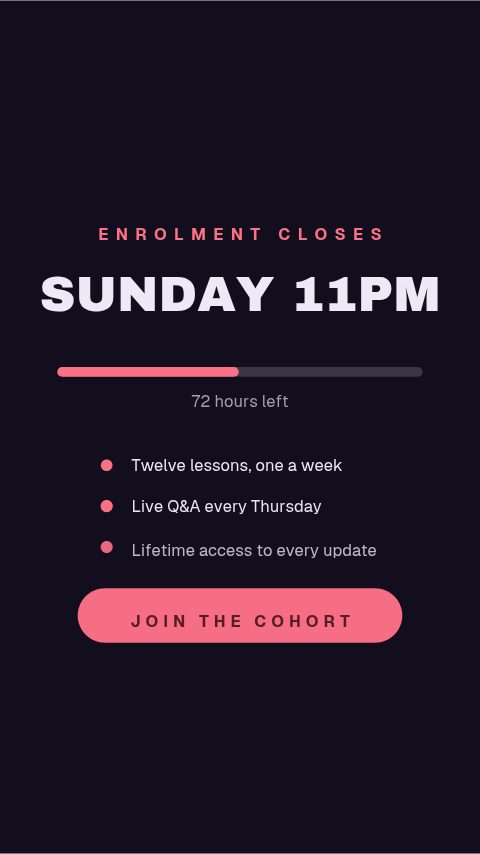 Enrolment Closing4s
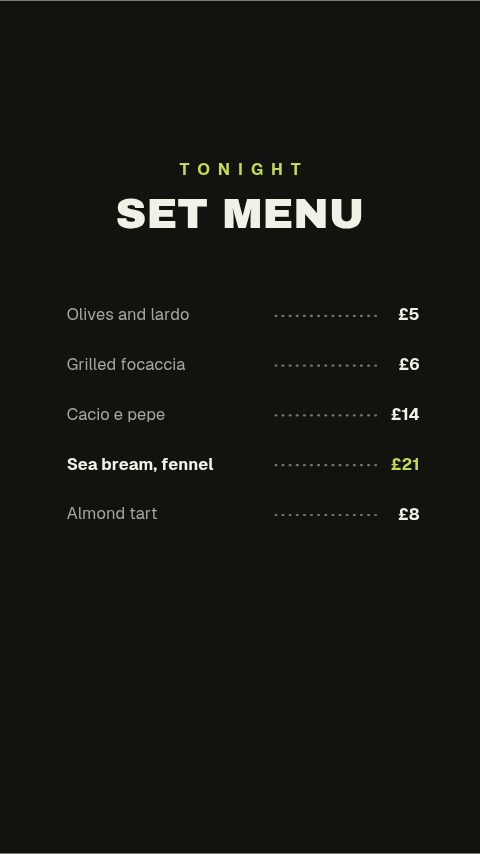 Set Menu Board4s
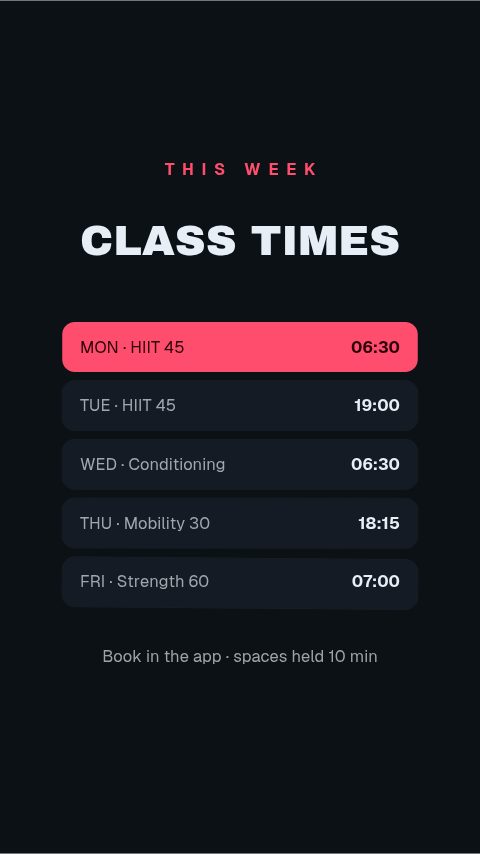 Class Timetable4s
 Job Card4s
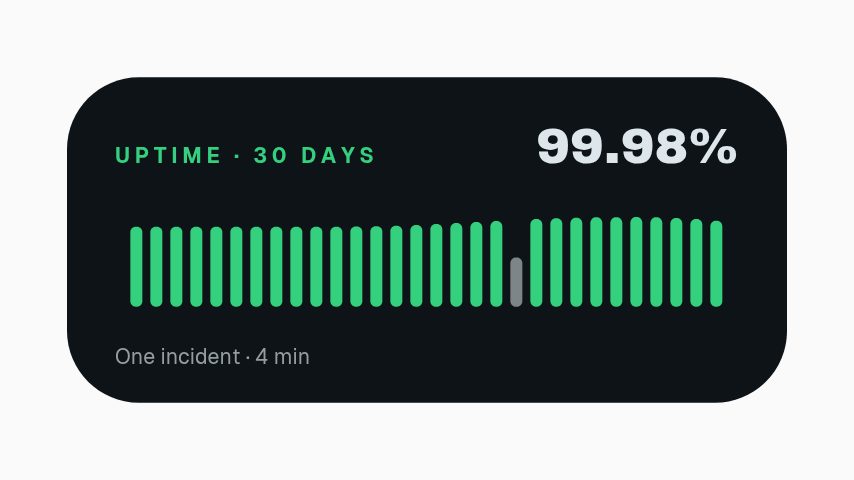 Uptime Badge3s
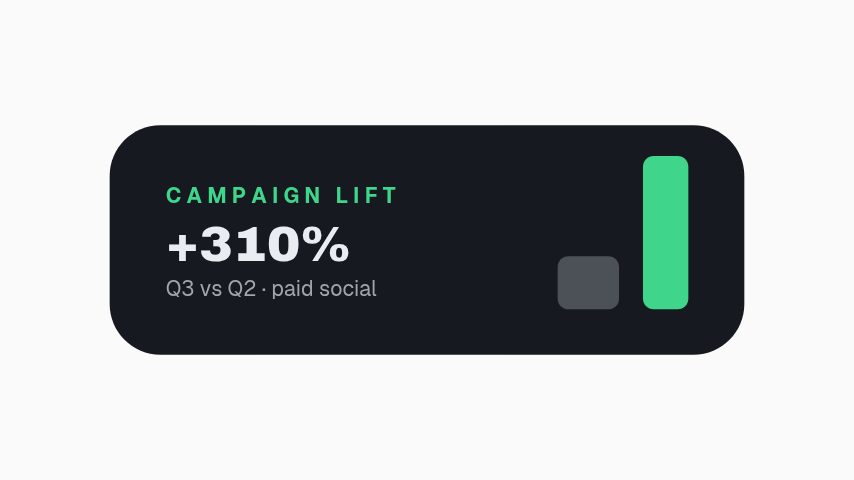 Campaign Lift3s
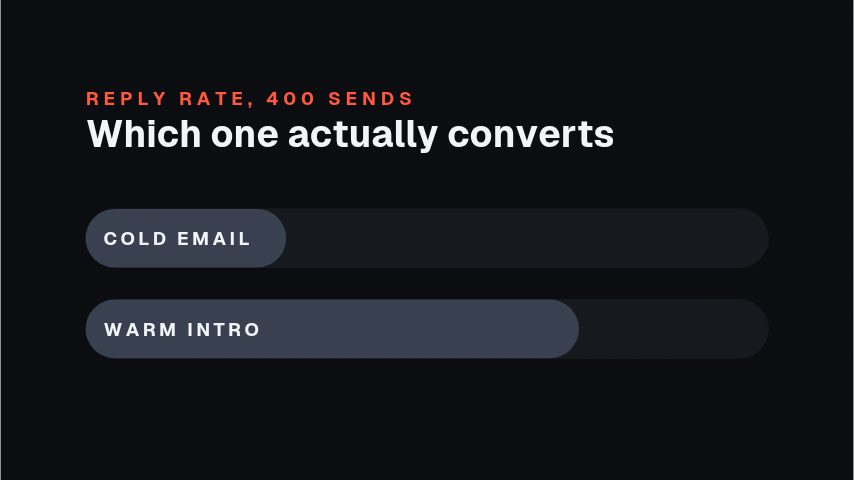 Stat Face-Off4.4s
 Before After Wipe4.4s
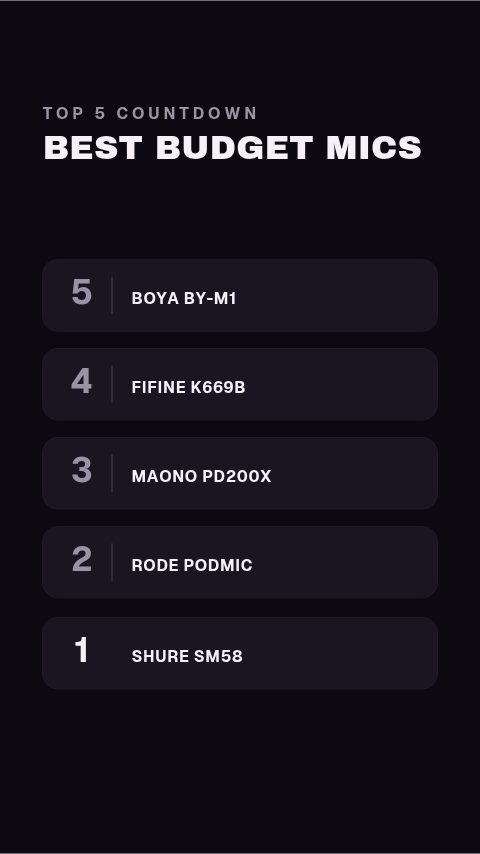 Top Five Countdown5s
 Equalizer Divider4s
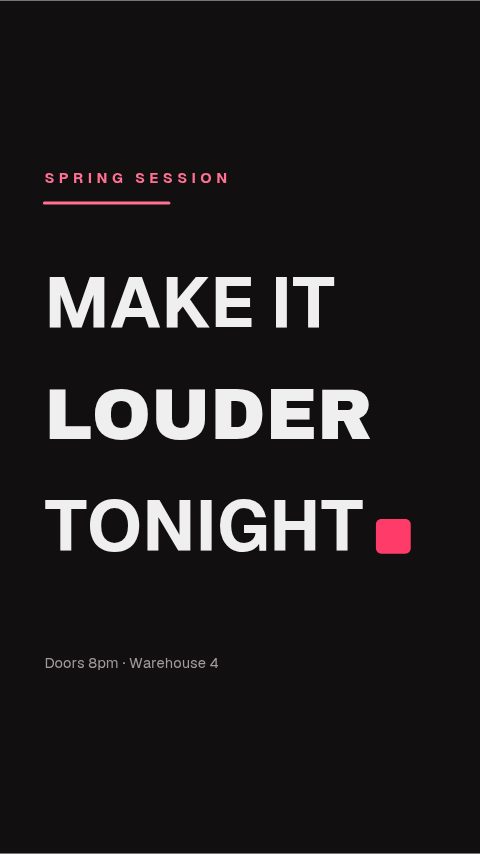 Slot Rise Title4s
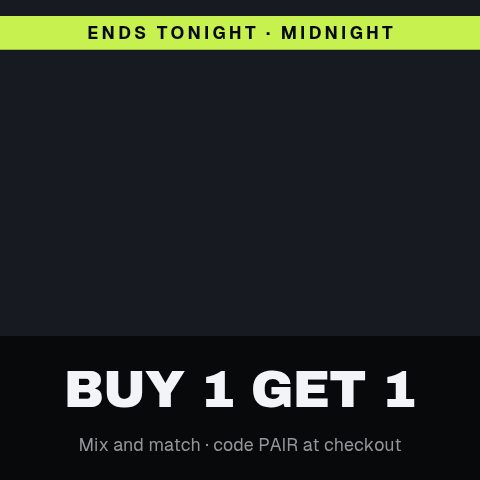 Tile Clear Reveal4.4s
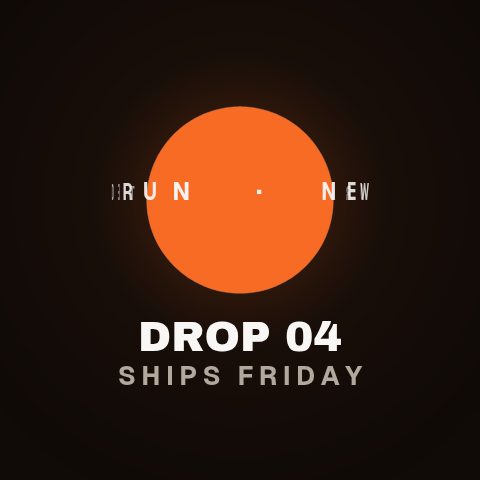 Cylinder Type Ring4.4s
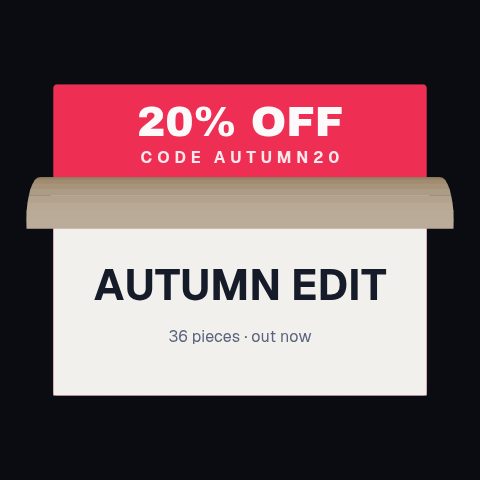 Page Peel Reveal4.4s
 Extruded Title4s
 Frosted Glass Plan4.4s
 Shipping Globe5s
 Split Lock Title4s
 Launch Teaser Spot11s
 Three-Act Spot11s
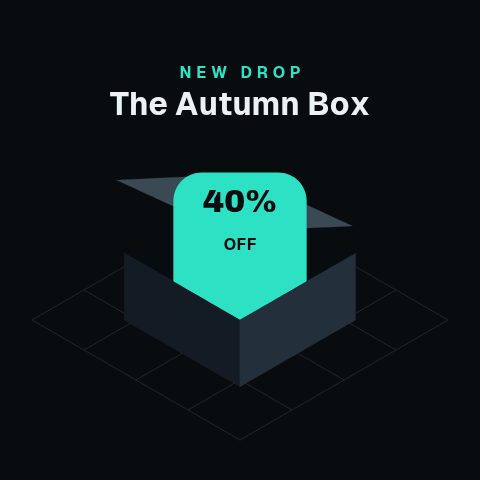 Axonometric Unbox4.4s
 Free Trial Countdown4s
 Shop Now Arrow3s
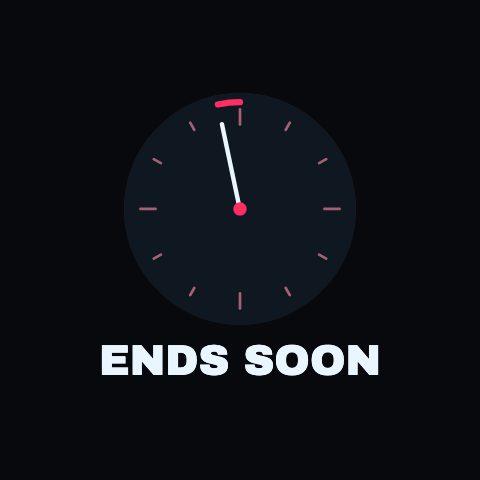 Ends Soon Clock4s
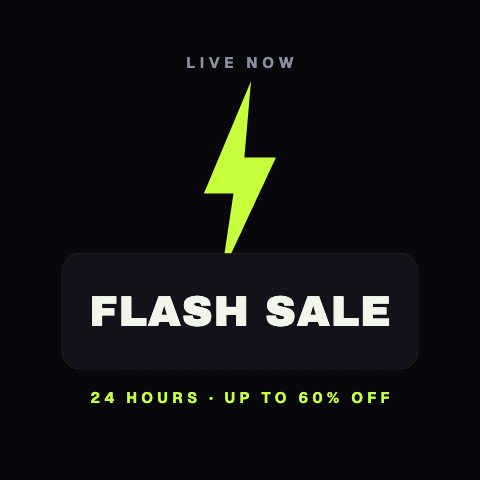 Flash Bolt Sale4s
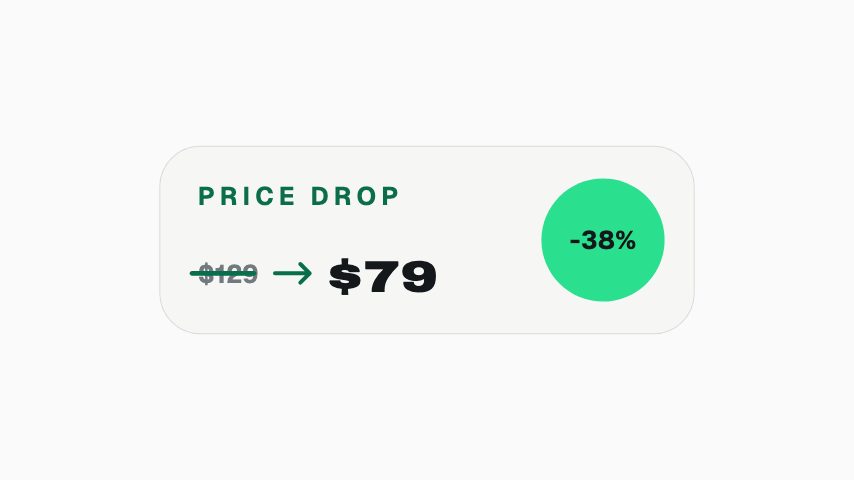 Price Strike Swap3s
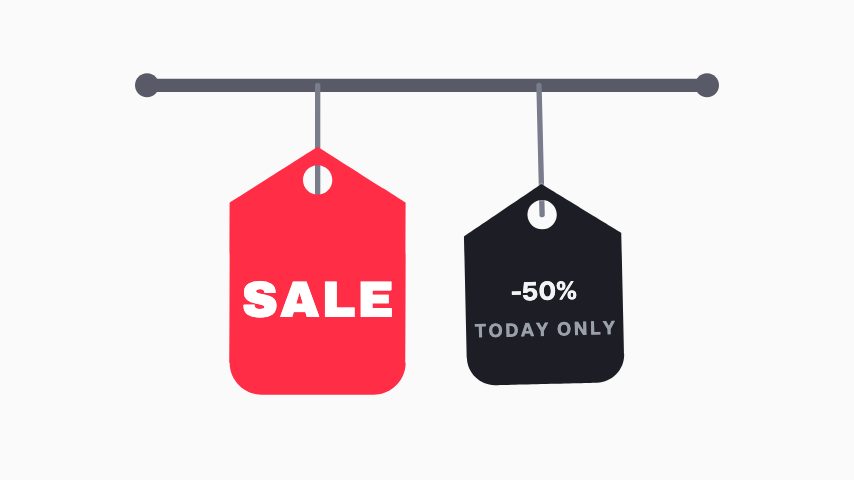 Tag Swing Sale3s
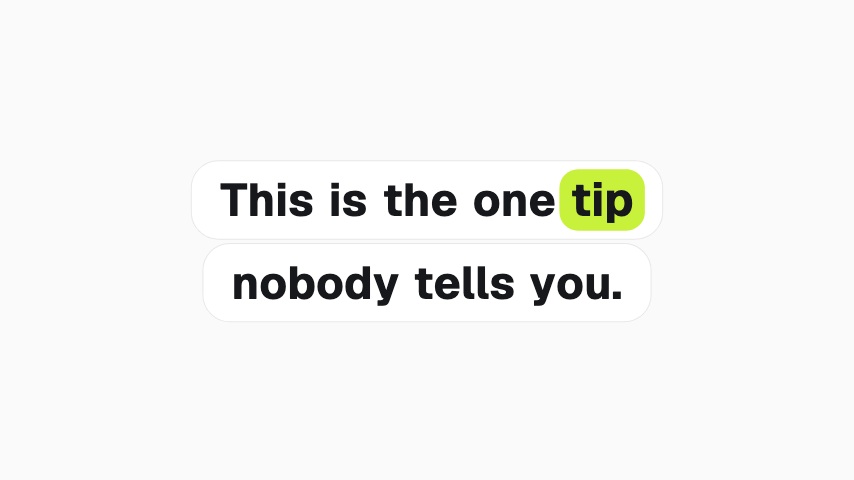 Caption Highlight4s
 Size Picker4s
 Spots Left Sticker3s
 Marquee Bands CTA4s
 Tile Grid CTA4s
 Card Fan CTA4s
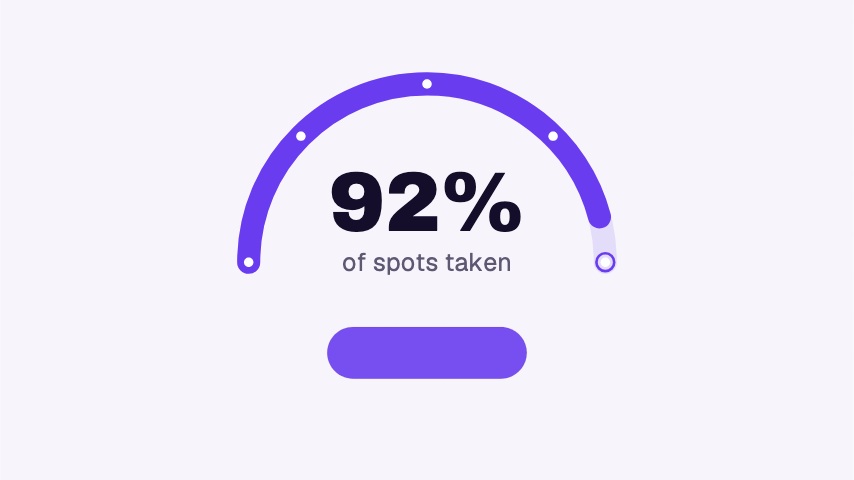 Gauge Urgency CTA5s
 Pill Focus CTA3.5s
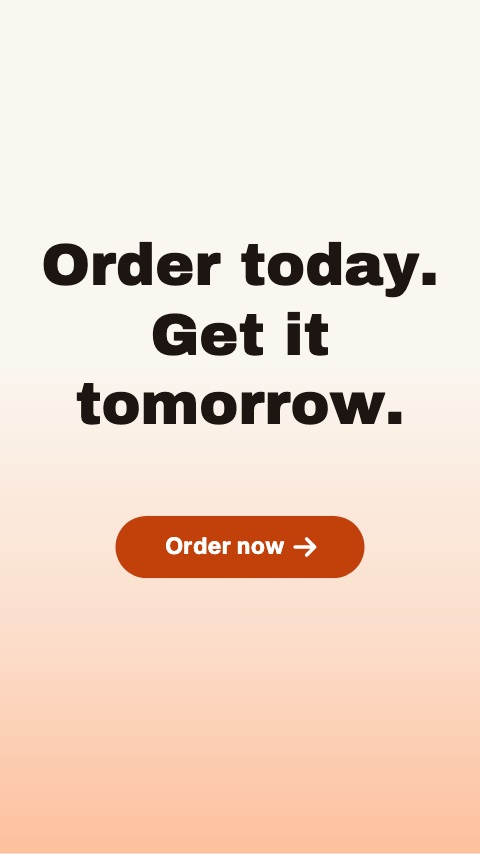 Word Rise CTA5s
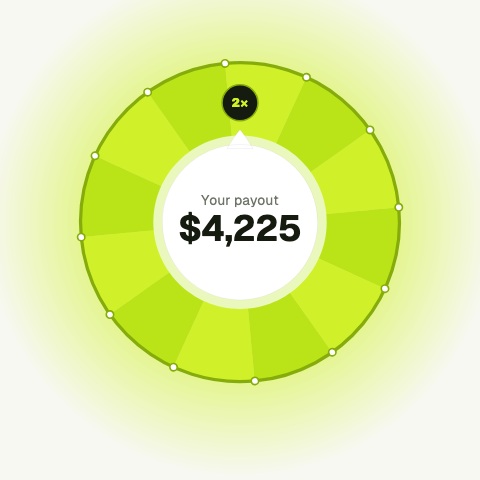 Payout Double5s
 Premiere Reminder5s
 Watch Next Sticker3s
 Pre-save5s
 Outfit Total5s
 Gear List5s
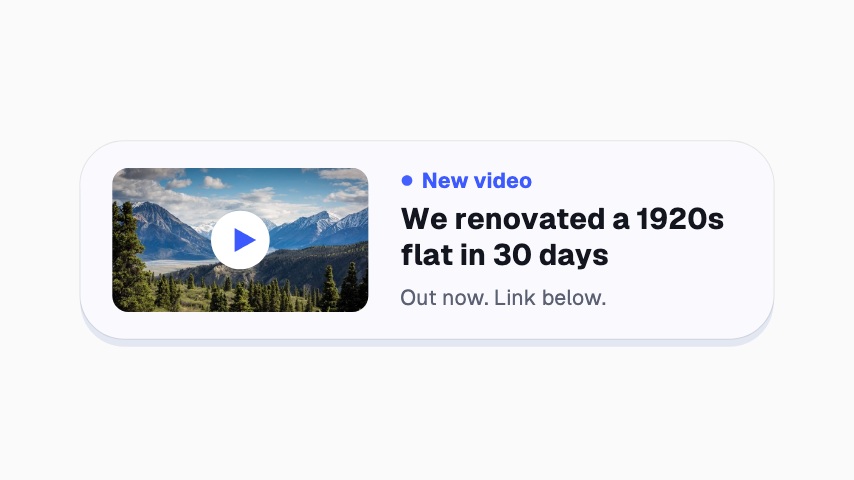 Latest Upload3.5s
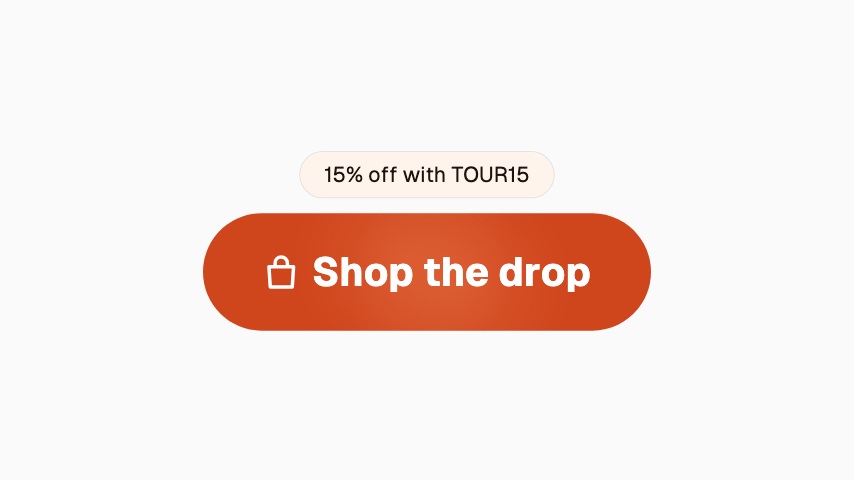 Soft Shop Button3s
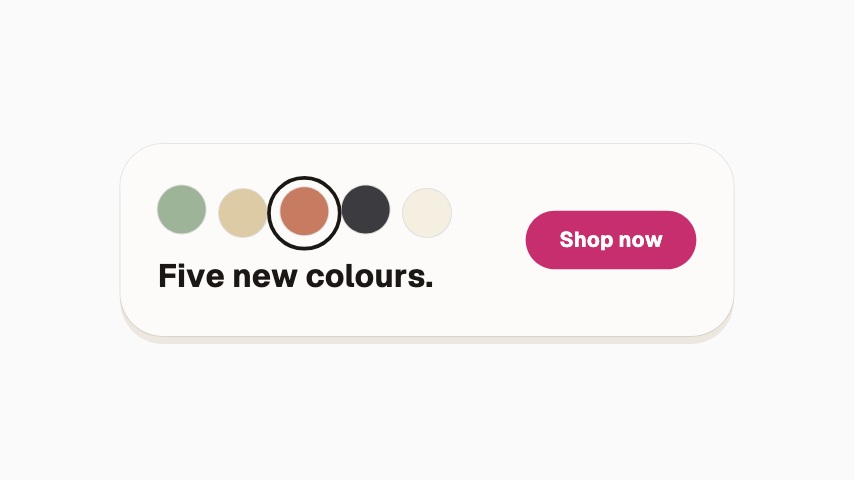 New Colours3.5s
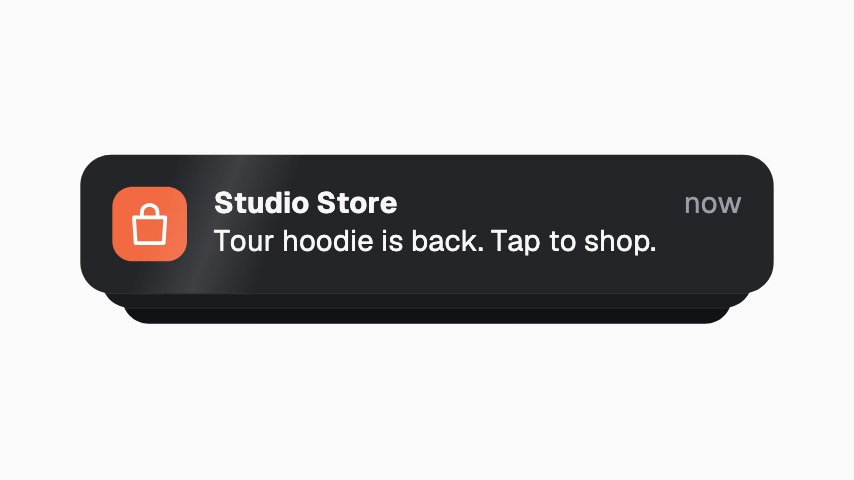 Restock Notification3.5s
 Bundle Burst3.5s
 Order Odometer3.5s
 Almost Sold Out3.5s
 Merch Is Live3s
 Product Row4s
 Pre-order Ring3s
Not quite you?
Make your stream look made, not defaulted.
Give a first-time viewer a channel worth staying in. Alerts, starting-soon screens, camera frames, goal meters and follow prompts, exported as transparent files your streaming software can read.
17 animationsMake the point land the second you make it.
Hold a viewer through the part of a lesson that words alone make longer. Key terms, timelines, comparisons, quiz reveals and citations, one clear graphic at the second it is needed.
8 animationsTurn an episode into a week of clips.
Get an audio show seen in a feed that plays silently. Guest intros, pull quotes, chapter markers, audiograms and sponsor slates, for the video feed and for the clips account.
8 animations
Open one and export something today
All 184 of these open on Pro, free for seven days. Cancel any time.
Start free