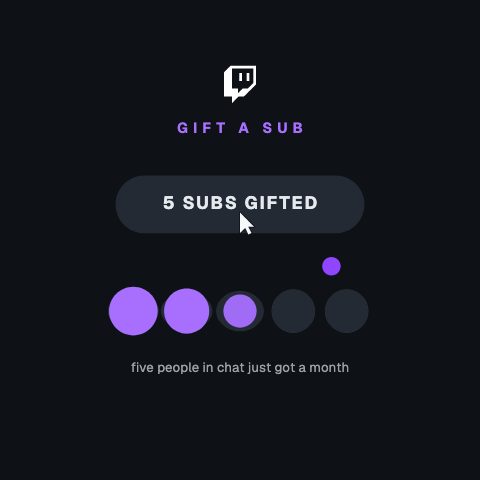
Sub Tier is for channels where the tier matters: emote slots, badges, whatever your tier one actually unlocks. Change the tier number to whichever level you are pointing people at. Use it as a stream overlay during a sub goal rather than as a permanent fixture.
Where it fits
As a stream overlay during a sub goal, with the tier you are pointing at.
In a perks explainer, showing what tier one unlocks.
In a sub-train recap, at each tier that landed.
Filling it in
The channel is your name without the @, and the two labels are the before and after. Change the tier number to the level you are promoting, and let the badge land on the button when it is pressed. Use it during the push rather than as a permanent fixture.
Format and timing
Twitch Sub Tier is built at 640 × 360, a 16:9 landscape frame, the shape of a YouTube video, a stream layout and most editing timelines, and runs 3 seconds at 30 frames per second. It arrives in 0.7 seconds, holds for 1.3 and clears in 0.9, so cue it a beat before the moment it labels. Export it as an MP4 for a timeline or a feed, a GIF where video will not embed, or a MOV with an alpha channel to lay it over footage with nothing behind it. Renders go up to 4K on a paid plan, and Pro opens it free for the first seven days.
What you can edit
Channeltext
Buttontext
After the presstext
Tiertext
Button colourcolor
Questions about Twitch Sub Tier
Where does the tier badge appear?
On the button itself, once it is pressed. The badge lands on the pill as it goes to SUBSCRIBED, so the tier reads as part of the action rather than a label beside it.
Can I show tier two or three?
Yes. The tier field is a number, so type 2 or 3 and the badge carries it. Export one version per tier if you are running a ladder.