Gaming stream overlay animations
Mark the moments worth watching, without covering the game they happen in.
In short
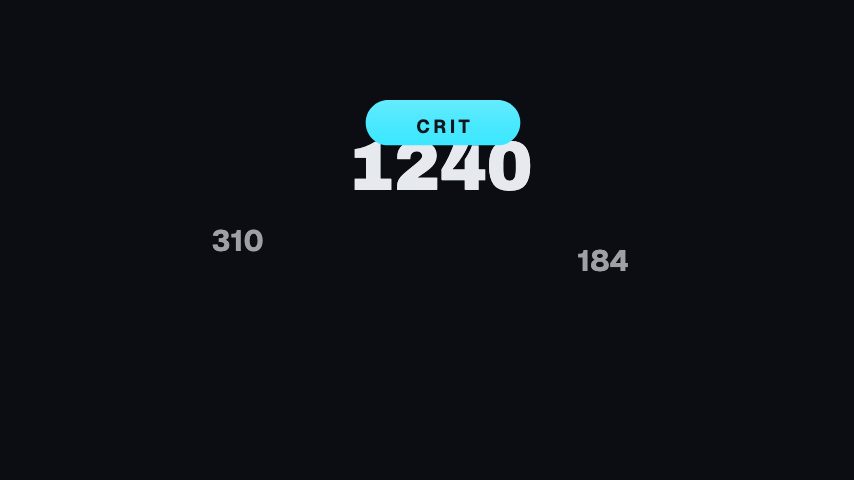
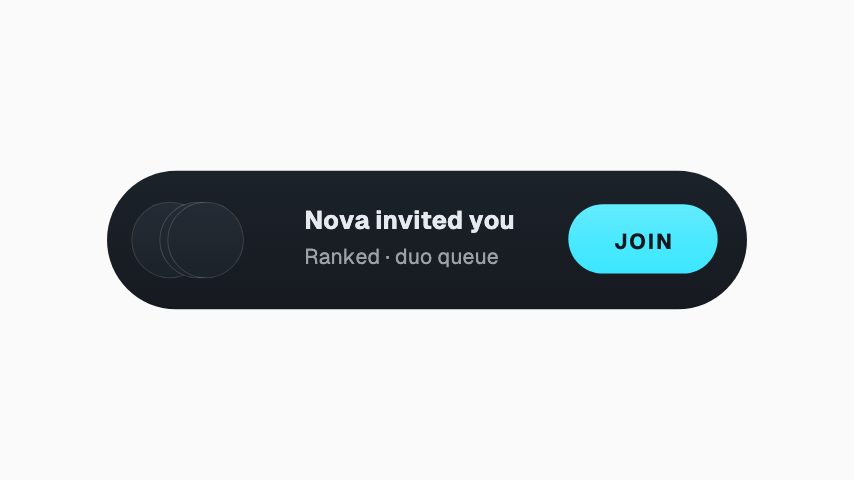
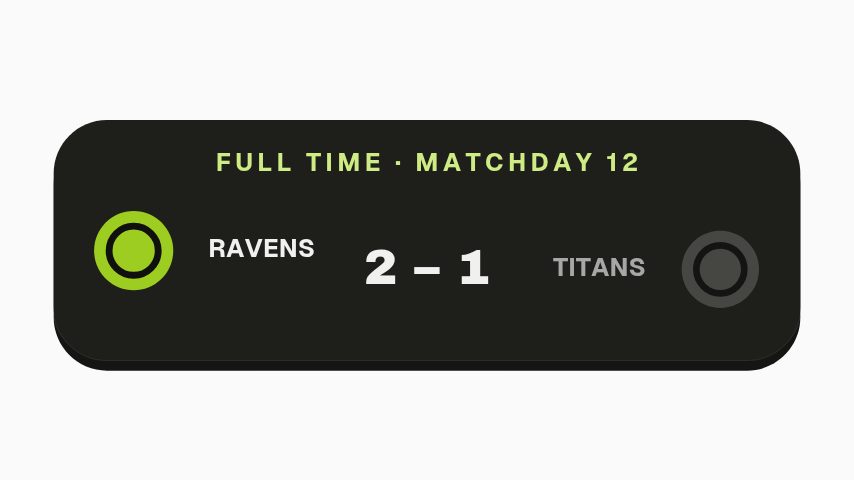
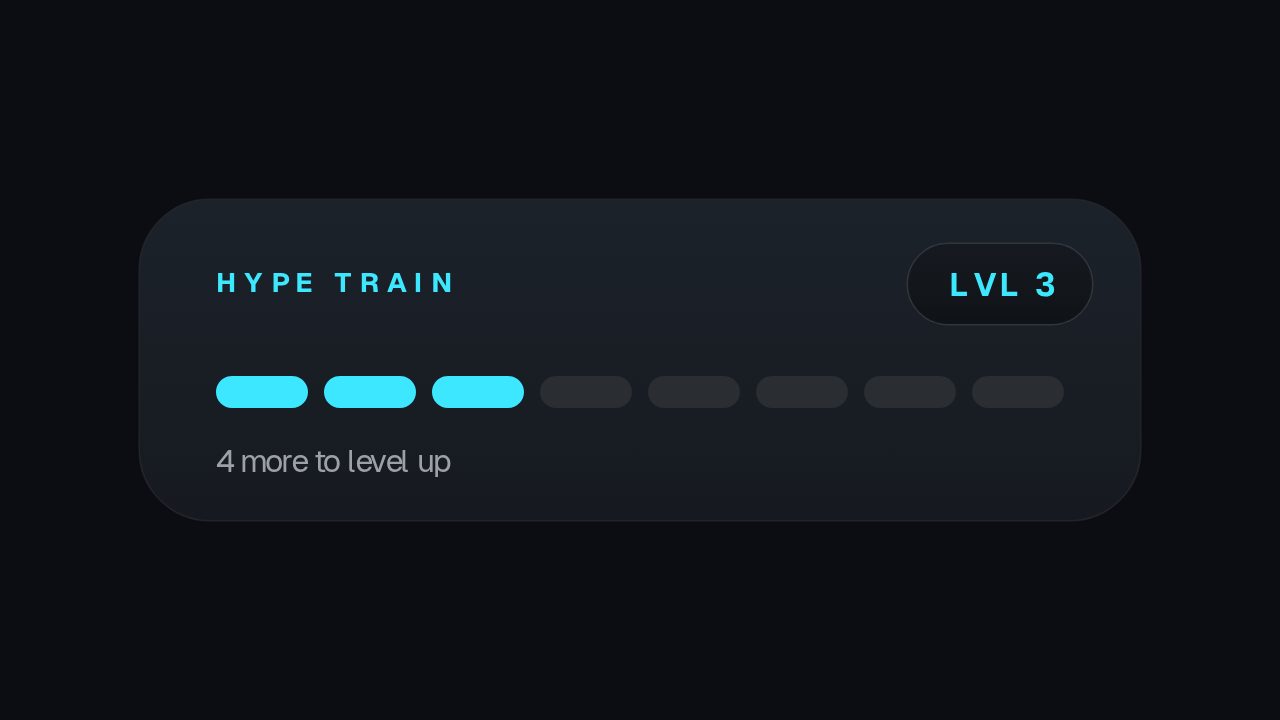
A highlight is worth more when the moment is marked, and a gaming overlay marks it without hiding the game: a damage number, a squad invite, a scoreline, a hype meter, a live badge. These are animated versions you brand in your own colours and export as MOV with a real alpha channel, so they composite over gameplay in an editor with nothing behind them. Live, the same animations can be arranged on an overlay canvas that OBS opens as a single browser source, with each one set to loop, run on a timer, or wait for a cue.
- 6
- Animations here
- 989
- In the library
- MP4, GIF, MOV
- Export
- 16:9 · 4:5 · 1:1 · 9:16
- Ratios
- 720p to 4K
- Resolution
- In the browser
- Editing
What you get
Nothing behind it, so the game stays visible
A real alpha channel rather than a black plate. Gameplay is the reason people are watching; an overlay that covers it is a problem, not a feature.
Works live and in the edit
Live it is a widget on an overlay OBS opens as one browser source. Afterwards it is a transparent clip on the timeline when you cut the highlight.
Numbers you control
Scores and figures are typed in. Nothing here reads the game or connects to an account, so what is on screen is what you put there.
60 fps, matching the stream
Export at 60 and the overlay does not judder against gameplay running at 60.
The animations
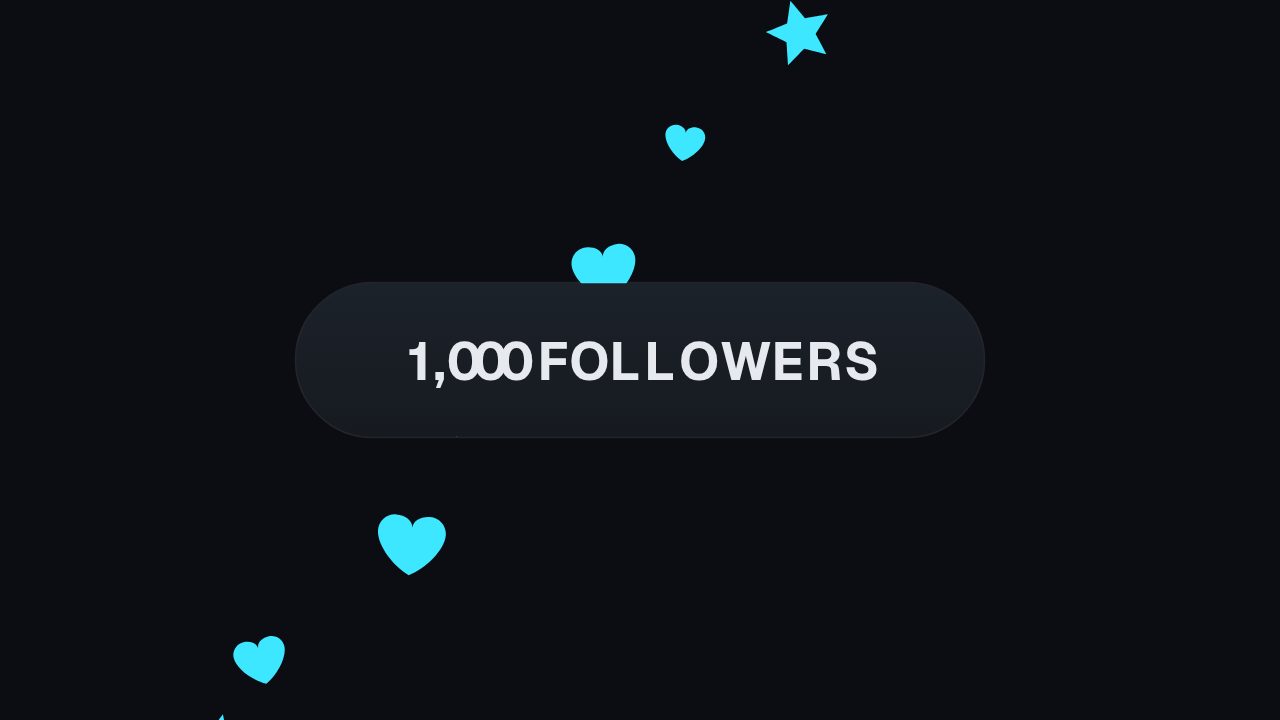
Damage pops, squad invites, scorelines and hype meters in your colours.
How to overlay an animation on gameplay
- 01
Pick what the moment is
A damage pop marks a hit, a scoreline holds a result, a hype train tracks a run. One overlay per thing worth pointing at.
- 02
Brand it and set the numbers
Your colours and typeface, and whatever text or figure the moment needs. Numbers are typed in, not read from the game.
- 03
Export transparent and composite it
MOV with a real alpha channel, then a media source in OBS or a track above the gameplay in your editor.
What comes out of it
Format for OBS
MOV with a real alpha channel, added as a media source over game capture.
Frame rate
60 fps, to match a 60 fps stream or capture.
Resolution
1080p on Pro, 4K on Studio.
Length
One to four seconds for a pop, longer for a meter that has to hold.
Questions
Does the overlay read anything from the game?
No. There is no game integration and nothing reads your session. Numbers are typed in, or passed by hand with the cue that fires a widget on the live overlay, so what is on screen is always something you sent.
Will it drop frames in OBS?
A pre-rendered media source is the cheaper of the two ways to run an overlay, lighter than a browser source running an animation engine to draw the same thing every frame.
Can I use these in a highlight video instead of live?
Yes, and that is often the better use. A transparent MOV on a track above your gameplay footage lets you place the pop exactly on the frame it belongs on.
What about a webcam frame?
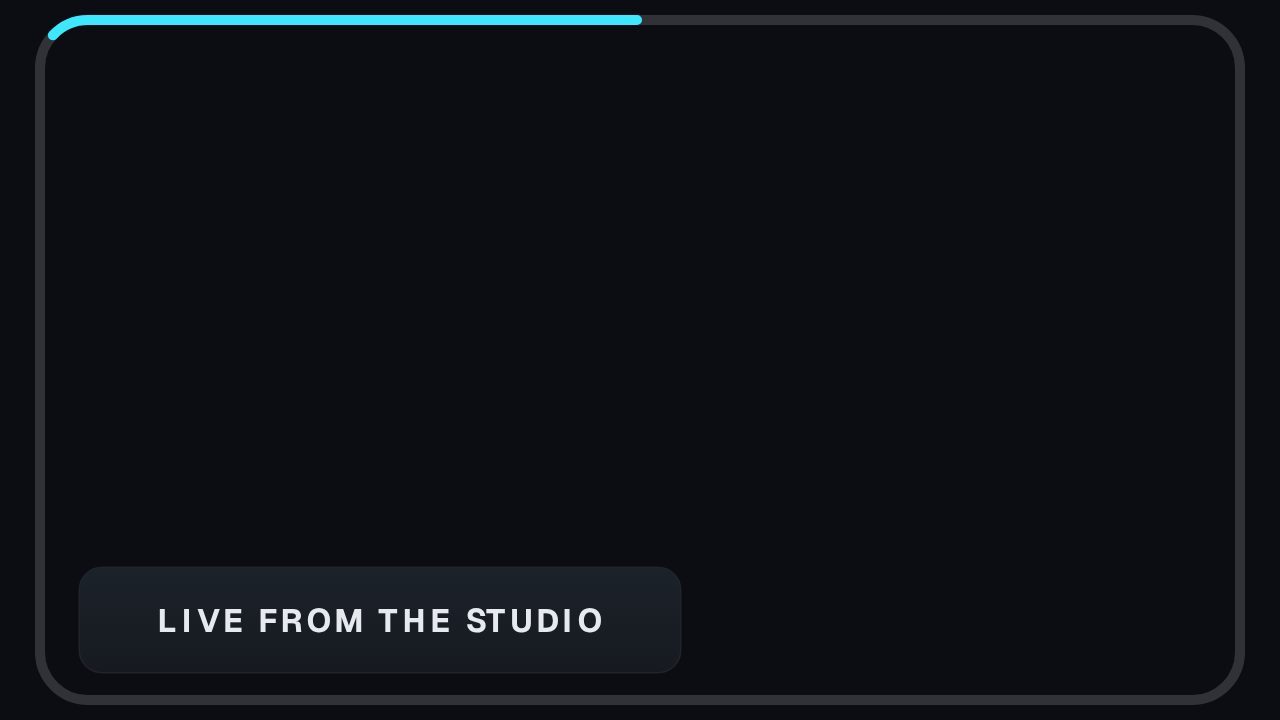
The camera frame exports transparent with the middle clear, so your webcam capture sits inside it in OBS rather than behind a filled plate.
Nearby
Lower third templates for podcasters
Guest plates, quote bars and idents for episodes and clips.
6 animationsYouTube subscribe animation templates
Subscribe buttons, bells and counters in your channel's colours.
6 animationsMake gameplay clips look like a channel.
Mark the beat the clip exists for, and ask for the subscribe while it plays. Rank-ups, scorelines, subscribe prompts and end cards, customised in your browser and exported as transparent files that drop straight onto your timeline.
The whole library for gaming YouTubers
Put your name on the moment
Brand the pops and the badges once, use them every stream.
Start your trial